
Ask Safety: questions by typing, voice or photo
Ask safety questions on the website or the phone app, by typing, voice or a photo, and get answers with their sources from your company manual and the official regulations.
Ask Safety is the safety assistant, on the website and in the phone app. Ask about your company's safety policy or OSHA and EPA requirements, or show it a photo of the work and ask what to check. Every answer names its source, and where your company manual and the regulation both apply, the stricter requirement is the one to follow.
Before you start
- On the website: Ask Safety in the menu. Type a question (or click the 🎙 to dictate in Chrome or Edge), attach a photo with 📷, and click Send. 🔊 Read aloud reads an answer out loud. Earlier conversations are on the left.
- In the phone app: Home → Ask Safety · policy, OSHA, photo. The phone can also talk hands-free (below).
- Every conversation is saved. The website lists your earlier conversations on the left, including the ones you had on the phone; open one to read it or carry on. On the phone, the Ask Safety start screen shows Continue a conversation with your five most recent ones.
- Until your company's own safety manual is confirmed, answers use the federal OSHA / EPA regulations only (the app tells you so).
Ask by typing
- Type your question in "Ask a safety question…" and tap Send. Or tap one of the example questions.
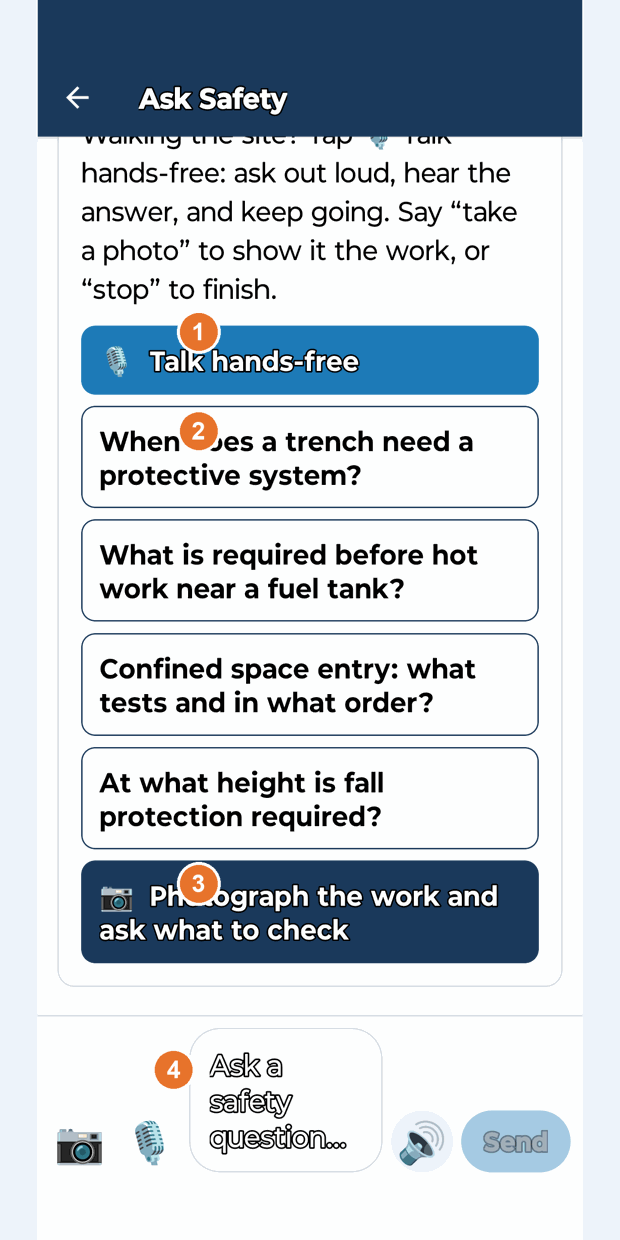
- Read the answer. It leads with a direct answer, then the key details, each labelled with its source.
- Tap 🔊 Read aloud to hear it. The 🔊 / 🔇 button next to the box turns automatic read-aloud on or off.
Ask hands-free (walking the site)
- Tap 🎙 Talk hands-free. The app says it is listening.
- Ask out loud. It answers out loud, then listens again.
- Say "take a photo" to open the camera and show it the work; ask your question after the photo.
- Tap the circle to interrupt an answer or to finish your question now.
- Say "stop" (or "that's all"), or tap End talk, to finish. It also stops after three silences.
Ask about a photo
- Tap 📷 next to the question box (long-press for your photo library), or 📷 Photograph the work and ask what to check.
- Add a question (optional) and tap Send. The agent says what work it sees, the hazards to look for, what the manual and regulations require, and 3 to 5 things to check now.
- If it shows a deficiency, tap Log as finding to open the finding screen with the photo and the agent's summary filled in (needs a project chosen on Home).
Sources
- Company manual quotes with the page, once your manual is confirmed.
- Regulation: the official federal section (29 CFR for OSHA, 40 CFR for EPA, 49 CFR for DOT). For anything outside the built-in regulation table, the agent may look it up live on osha.gov, ecfr.gov, epa.gov or law.cornell.edu; those sources open as links.
- Your company rules are followed too.
If something goes wrong
- "Talk mode needs the LaunchPad Safety app": hands-free talk works only in the installed app from Google Play. Use the keyboard microphone to dictate instead.
- "Microphone permission is needed for talk mode": allow the microphone for LaunchPad Safety in your phone's Settings.
- Slow answer: it can take up to about 30 seconds when it checks the manual and the regulations. Tap Cancel to stop.
Good to know
- Ask Safety supports your competent person; it never declares a condition "safe" and is not legal advice. For imminent danger it tells you to stop work and contact your supervisor and the Safety Team.
- It notes when a State Plan state (for example California, Washington or Oregon) may have stricter rules.
- Hands-free talk mode is in the phone app; on the website you dictate with 🎙 and listen with 🔊 Read aloud.
Still stuck? Call or text (888) 207-2330 or email support@launch-pad-core.com.