
Record a finding with AI photo review
Photograph a deficiency, let the AI agent draft the finding with its regulation citations, check and edit it, then confirm to create the corrective action in Procore.
When an item is Unacceptable, you photograph the condition and the AI agent drafts the finding: a title, what it sees, the action required, a priority, the hazard category and the regulations that apply. The agent drafts; you decide. Nothing goes to Procore until you confirm. Administrators, Safety Personnel, Superintendents and Project Managers can record findings.
Steps on the phone
- Tap Unacceptable on the item (or 📷 Photograph this finding).
- Tap 📷 Take photo (or Choose from library). Add a Note if it helps: what you saw and where. Tap the microphone on your keyboard to dictate.
- Tap Send to AI agent. "AI agent reviewing photo…" usually takes 10 to 40 seconds.
-
Check the draft. It is marked "Suggested by the AI agent — review before confirming". Edit anything that is wrong:
- Title, Description (observed), Action required. Tap Description or Action required to open it full screen, as large as your phone allows. Write, then tap ✓ Save to keep it and go back to the form, or ✕ Cancel to leave it as it was (the phone's Back button is Cancel too).
- Priority (Urgent, High, Medium, Low) and Due date, set from the priority (Urgent: today; High: 1 working day; Medium: 3; Low: 7). Change it if needed.
- Hazard, Contributing condition, Contributing behavior (optional) and Trade (optional), from your company's Procore lists
- Assignee: anyone in the project Directory, any company, including subcontractors 5. Tap Confirm — create corrective action. The corrective action (a Procore observation) is created on the item, with your photo, and sent: Procore emails the assignee and the distribution, and fills in Date Notified.
Steps on the website
- Click Unacceptable (or Record finding) on the item. The Record a finding window opens.
- Add the Photo of the condition and an optional Note, then click Review photo with AI agent.
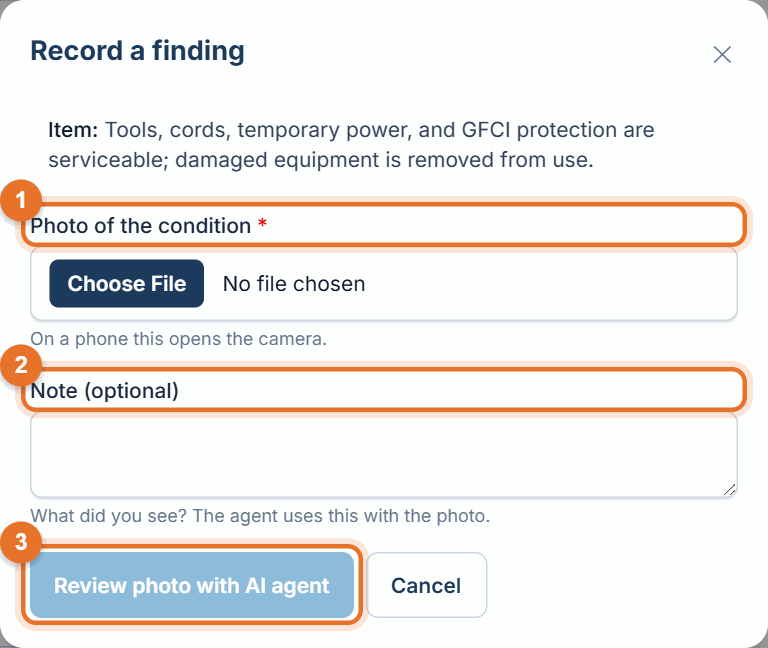
- Check and edit the draft, choose Hazard, Contributing condition and Assignee, and if you like Contributing behavior and Trade. Description and Action required are large boxes (about 16 lines); drag the bottom-right corner to make them taller.
- Tap a regulation citation to include or remove it. Kept citations go into the Procore observation.
- Click Confirm — create corrective action. You'll see "Corrective action #… created in Procore".
What the draft shows
- Regulation citations: official federal OSHA / EPA sections, each with a short quote copied word for word from the official text. See "The regulations and standards the agent uses".
- From your company manual: exact quotes with the chapter and page, once your company's manual is confirmed.
- Stricter requirement applied: when your manual and the regulation differ, the stricter one is used in Action required, and the note says which.
- Industry standards (fuel-system work): standards such as API RP 1604 or NFPA 30A, named by number and title only.
- AI confidence and a Photo note if the photo is unclear. If the agent did not see a clear hazard, it says so.
What goes into Procore
- The fields: title, priority, due date, hazard, contributing condition, contributing behavior, trade, assignee, the distribution (the project's default unless you changed it) and your photo (the marked-up one too, if you drew on it), plus any more photos or files you added.
- Action required: in its own Action Required field when your company has one in Procore (JF's companies do). Otherwise it is a bold Action required: section in the Description, one item per line. LaunchPad checks Procore kept the field; if not, it puts the text in the Description before anyone is emailed, so it is never lost.
- The Description, formatted in sections: what was seen; your company manual quotes; Regulation: with one citation per line; the stricter-rule note; industry standards; and Reported by … via LaunchPad Safety.
- Sent: Procore emails the assignee and the distribution, and Date Notified is filled in. Procore only sends all of a project's unsent observations at once, so if someone left one unsent in Procore on purpose, LaunchPad doesn't send: it tells you, and you send it from Observations in Procore.
If something goes wrong
- "Required: …": fill in the fields listed (hazard, contributing condition and assignee are always required).
- "The AI agent declined to review this photo. Describe the finding manually.": fill in the fields yourself and confirm.
- "Photo is larger than 15 MB": retake the photo or choose a smaller one.
- No signal on the phone: the photo is kept on the phone. See "Working with poor signal".
- The hazard (or trade) you need isn't in the list: the lists come from your company's Procore (Admin → Trades; Admin → Incidents for hazards, conditions and behaviors). Your Procore admin adds it there. Trades show up in LaunchPad within about 10 minutes; for hazards, your Administrator refreshes the connection.
- "It is waiting to be sent in Procore": other unsent observations are on the project. Open Observations in Procore and send it there.
Good to know
- Tap Retake photo to start again without sending anything.
- From Ask Safety, Log as finding on an answer about a photo opens this same screen with the photo and the agent's summary filled in.
Still stuck? Call or text (888) 207-2330 or email support@launch-pad-core.com.