
Work a corrective action: Ready for Review, Not Accepted, Close
Follow a corrective action from open to closed: the assignee marks it Ready for Review with a photo, the reviewer accepts or sends it back, and an authorized person closes it.
A corrective action is the Procore observation created when someone confirms a finding. It moves through these steps:
| Status | What happens next |
|---|---|
| Open | The assignee fixes the condition |
| Ready for review | Someone checks the fix |
| Not accepted | Back to the assignee, with what is still missing |
| Closed | Done |
Who can do what
| Action | Who |
|---|---|
| Ready for Review (photo required) | Administrator, Safety Personnel, Project Administrator, Superintendent, Subcontractor Lead (only items assigned to them in Procore), on any open item that isn't already Ready for review |
| Not Accepted (comment required) | Administrator, Safety Personnel, Project Administrator, Superintendent, on an item that is Ready for review |
| Close | Depends on your company's closing rule (below) |
The website and the phone show exactly the same buttons: LaunchPad Safety works out, for each item, what you may do now, and refuses anything else.
Find your corrective actions
- Phone: Home → choose the company and project → Corrective Actions. Filter by Open, For review, Raised by me or Closed. Overdue items are marked.
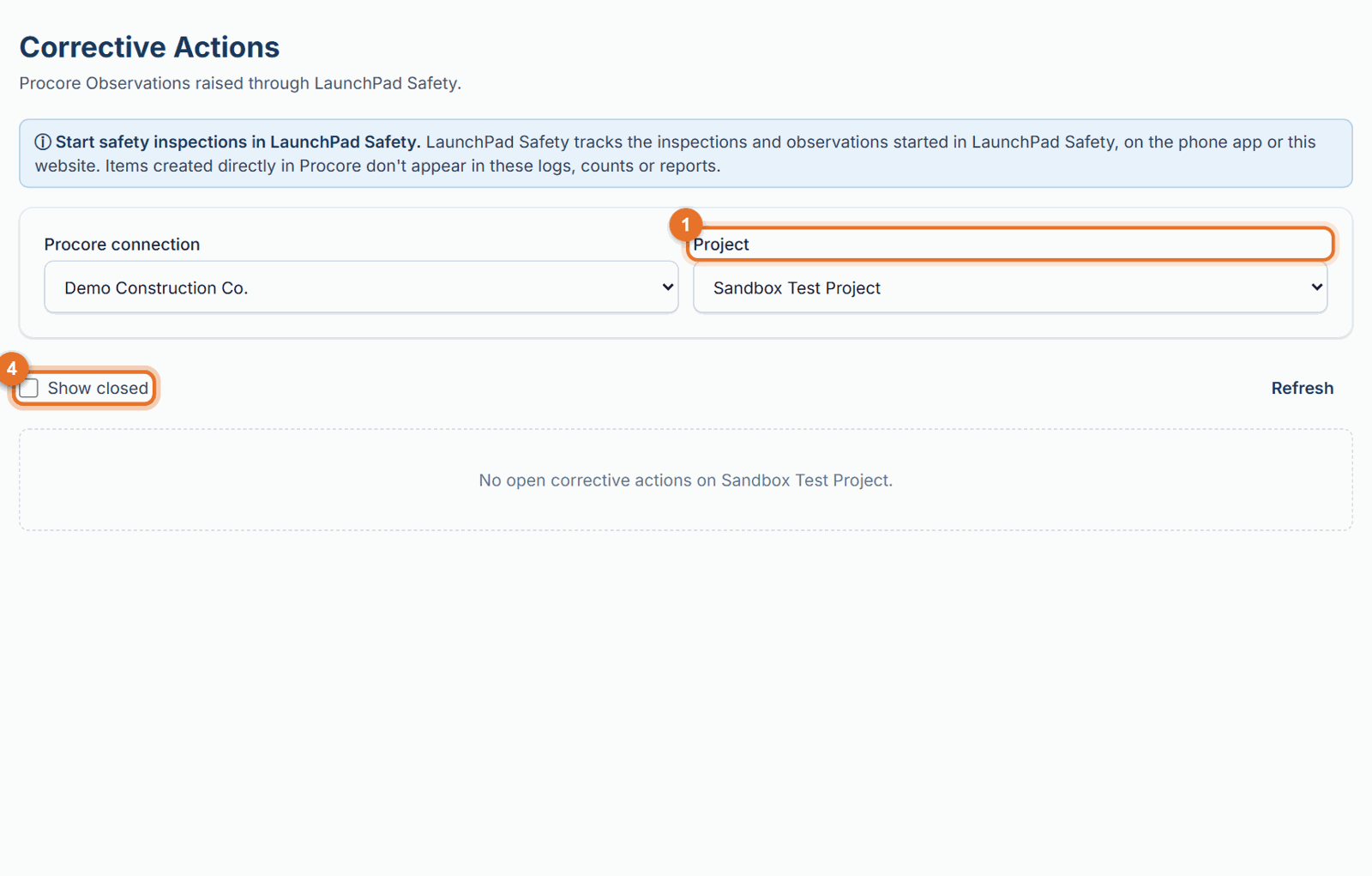
- Website: open Corrective Actions, choose the Procore connection and Project. Tick Show closed to include closed items. Overdue items are highlighted.
Mark it Ready for Review (the fix is done)
- Open the corrective action (phone) or find its row (website).
- Tap Ready for Review.
- Add a Comment saying what was done, and a Photo of the corrected condition (required).
- Submit. The photo and comment are added in Procore and the status changes to Ready for review.
Review it: accept or send back
- Not happy with the fix? Tap Not Accepted, say what is still missing, and submit. It goes back to the assignee.
- Fix is good? Tap Close, add a comment (and a photo if you like), and submit.
Close it: your company's closing rule
The Administrator chooses the rule in Settings → Who closes corrective actions:
| Rule | Who may close |
|---|---|
| Safety, and the Superintendent who raised it (the default) | Administrator, Safety Personnel and Project Administrators close any item (photo optional). A Superintendent may close items they raised, with a photo of the fix. |
| Safety only | Only the Administrator, Safety Personnel and Project Administrators. |
| Safety, and Project Managers for Low / Medium | Safety closes any item. A Project Manager may close Low and Medium priority items, with a photo of the fix. |
Each step is recorded in Procore as a comment, for example "Closed — … — Dana Ruiz (safety) via LaunchPad Safety". The Dashboard counts closures by Safety, by Superintendents (own items) and by Project Managers.
Edit it
Click Edit on the row (Safety, the Administrator, or the person who raised it; not once it's closed). Change the title, description, action required (its own box when your company has the Action Required field in Procore), priority, due date, who it's assigned to, the type, the hazard, the contributing condition or behavior, the trade or the distribution, and add more photos or files (from your computer, or from the project's Procore photos). The top of the window says whether it has been sent in Procore; saving sends one that wasn't. Then click Save here and in Procore. Procore gets the change with a comment saying who changed what, and its Daily Log Safety Violation entry (title, due date, company) is kept in step. If it's deleted later and sent again, it goes with the edited details. Safety and the Administrator also have Edit and Delete on each row of Logs → Observation log.
Get the PDF
- Website: click PDF on the corrective action's row (or in Logs → Observation log).
- Phone: open the corrective action and tap Open the PDF report. It opens in your phone's browser for 10 minutes.
If something goes wrong
- "Only the Safety Team, or the Superintendent who raised this item, can close it", "Only Safety (Administrator, Safety Personnel or a Project Administrator) can close it" or "Only Safety, or a Project Manager for a Low or Medium priority item, can close it": your company's closing rule doesn't let you close this one; ask Safety Personnel or a Project Administrator.
- "Attach a photo of the corrected condition to close this corrective action": add the photo and submit again.
- "This corrective action is already Ready for Review or closed" / "Only an item that is Ready for Review can be marked Not Accepted": someone changed it meanwhile; refresh the list.
- "No actions available for your role at this stage": someone else does the next step (see the table above).
- "A Subcontractor can mark Ready for Review only the items assigned to them in Procore": the item is assigned to someone else, or your LaunchPad Safety email isn't the one in Procore (Settings → Your Procore account).
- "This corrective action was not created in LaunchPad Safety": only items raised through LaunchPad Safety can be worked here; use Procore for others.
Good to know
- The due date comes from the priority when the finding was confirmed (Urgent: today; High: 1 working day; Medium: 3; Low: 7).
- Overdue items, and how quickly each person and company closes them, show in Logs and the People report.
- The closing rule applies to the whole company. Changing it takes effect straight away on the website and the phone.