
Answer inspection items and finish an inspection
Answer each item Acceptable, Unacceptable or N/A, find what is left to do, record a finding for each deficiency, close the inspection, and get its PDF.
Each item on the inspection is answered Acceptable, Unacceptable or N/A. Answers are saved to Procore as soon as you tap them. An Unacceptable answer is a deficiency, and the app takes you straight to recording a finding for it.
Steps on the phone
- Open the inspection (Home → Safety Inspection → tap the inspection).
- Open a section and tap Acceptable, Unacceptable or N/A for each item.
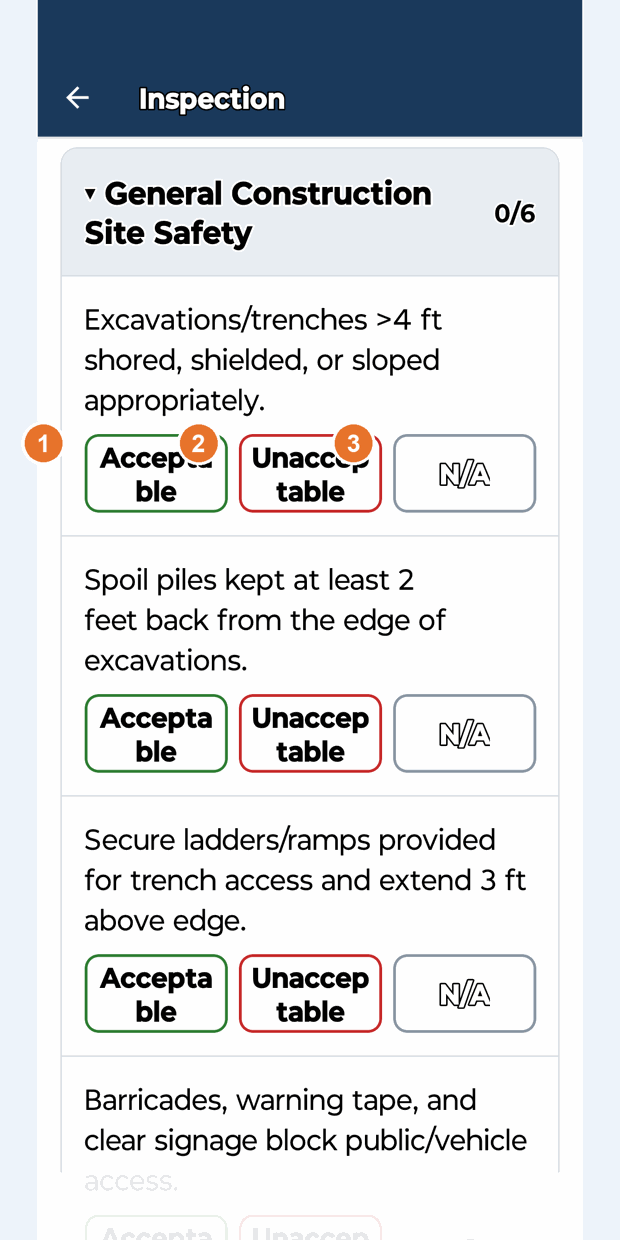
- When you tap Unacceptable, the camera screen opens so you can photograph the finding (if your role can raise corrective actions). See "Record a finding with photo review".
- Use the filters at the top: All, To do (items not answered yet) and Deficiencies (Unacceptable items, with their corrective actions and status).
- When To do shows "✓ Every item is answered", the walk is done. Close the inspection (below).
No signal? Keep answering. Answers are kept on the phone (the screen shows "N answers saved on the phone") and sent to Procore automatically when the signal is back. See Working with poor signal on the phone.
Steps on the website
- Open Field, choose the project and click the inspection.
- Click Acceptable, Unacceptable or N/A for each item. "Saving…" shows while it is sent to Procore.
- When you click Unacceptable, the Record a finding window opens. Later, use Record finding (or Add another finding) next to the item.
- Use All / To do / Deficiencies to filter. Progress shows "x of y items answered".
Close the inspection
Anyone who can inspect (Administrator, Safety Personnel, Project Administrator, Superintendent, Project Manager) can close it. - Phone: on the inspection screen tap Close inspection, then Close to confirm. - Website: on the inspection page click Close inspection at the top.
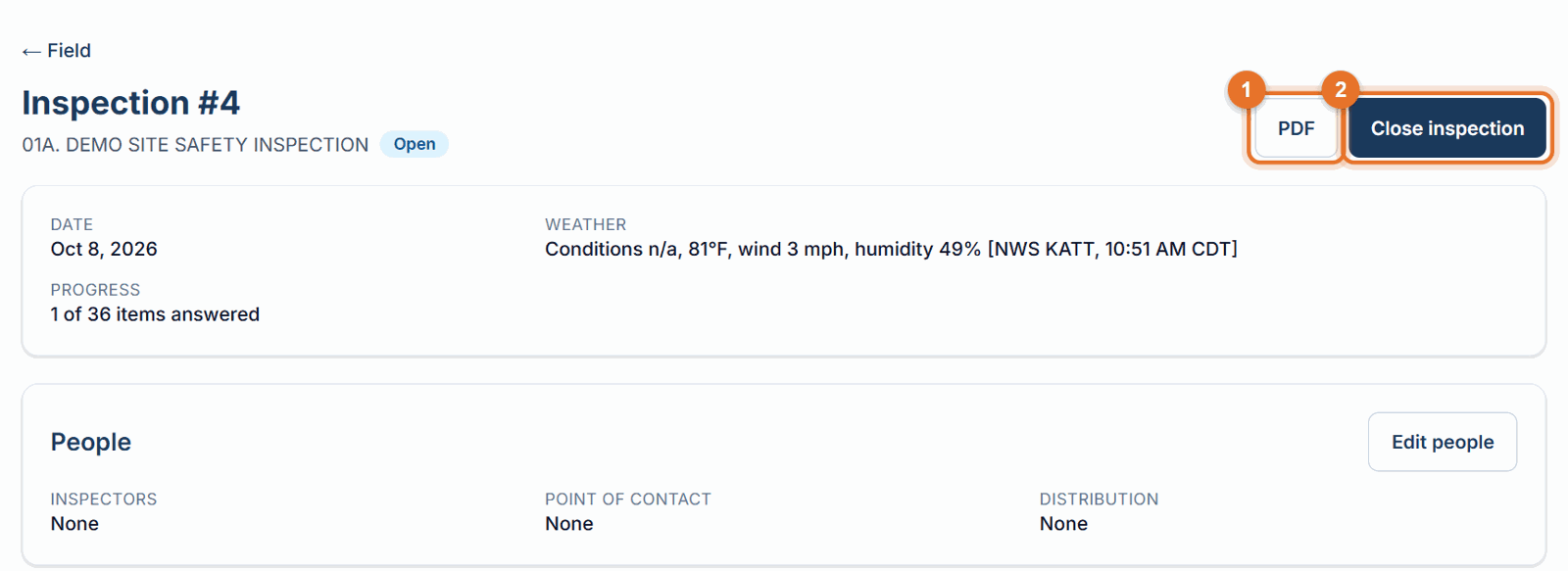
- If some items are still unanswered you'll see "N items are not answered yet. Close the inspection anyway?" Choose Close anyway (phone) or OK (website) to close it as it is, or cancel and finish the items.
- The inspection is closed in Procore. Once it's closed, items can't be answered and its people can no longer be changed.
Get the inspection PDF
The branded report lists every section, item, answer and corrective action. - Website: click PDF at the top of the inspection page, or PDF on its row in Logs → Inspection log.
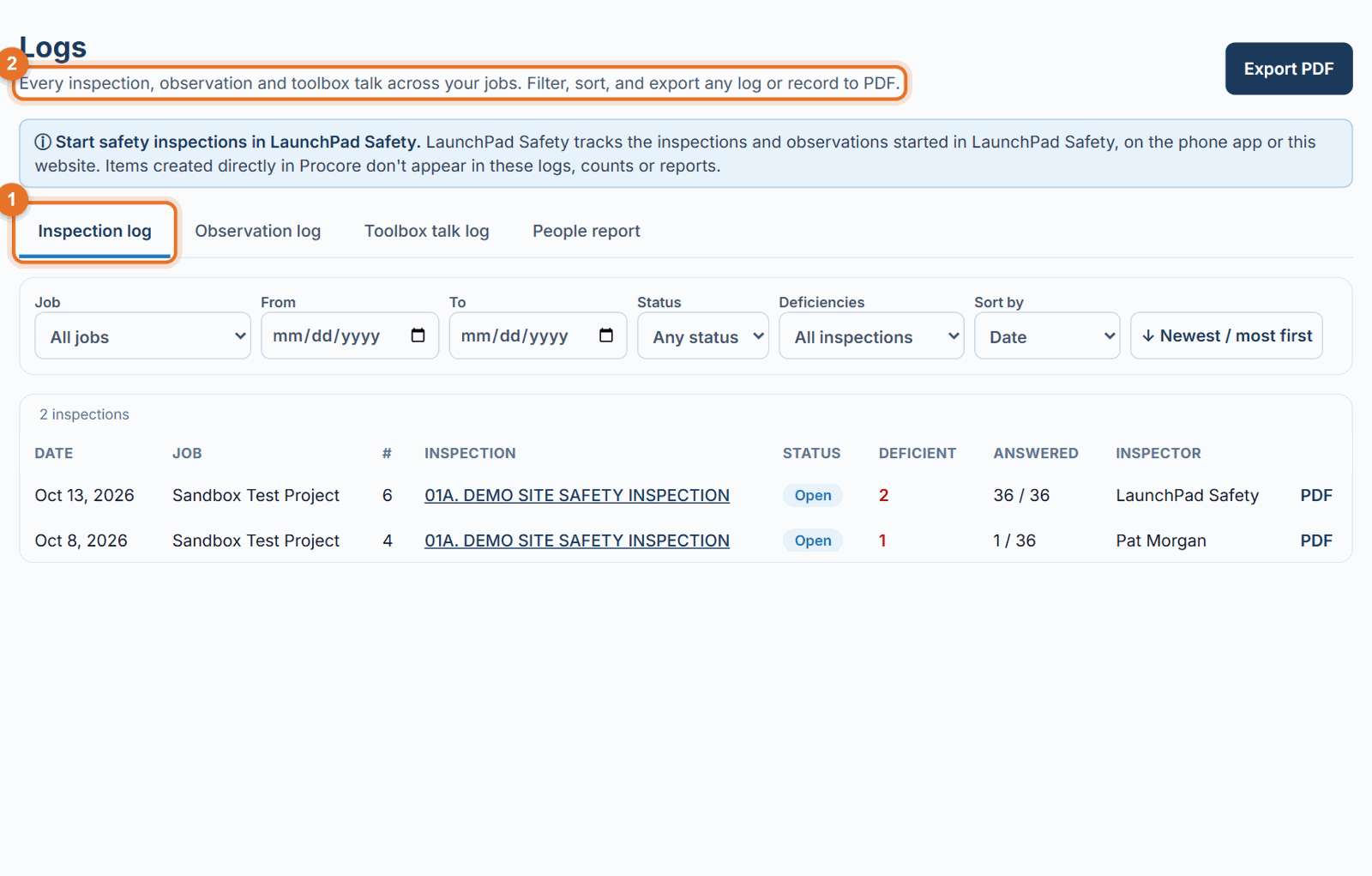
- Phone: tap PDF report on the inspection screen. It opens in your phone's browser, where you can share or save it. The link works for 10 minutes; tap the button again for a new one.
If something goes wrong
- An answer flips back with an error (website, or the phone with signal): Procore refused it; the message says why. Without signal the phone keeps the answer instead.
- "Your role can view this inspection but not answer items": Subcontractor Leads, Project Coordinators and Executives can look but not answer.
- "This report link has expired" (phone PDF): tap PDF report again.
- "No corrective action recorded for this deficiency yet" (Deficiencies view, website): record a finding for that item.
Good to know
- Corrective actions raised from an item show on that item ("1 corrective action raised") and in the Deficiencies view with their status.
- Pull down on the phone (or reload the page) to refresh statuses from Procore.