
Start a safety inspection
Start a safety inspection on a project from the phone app or the website; it is created in your Procore from your company's template.
A safety inspection is your company's checklist for a site walk. When you start one in LaunchPad Safety, it is created in your company's Procore (Inspections tool) from the inspection template your Administrator chose. Administrators, Safety Personnel, Superintendents and Project Managers can start inspections.
Before you start
- Your Administrator has connected Procore and chosen the inspection template (Settings → Connect Procore).
- The template is added to the project in Procore's Inspections tool. If it isn't, you'll see "The safety inspection template is not available on this project".
- Start inspections in LaunchPad Safety, not directly in Procore: only inspections started here appear in your safety logs, counts and reports.
Steps on the phone
- On the Home screen, choose the Procore company and the Project.
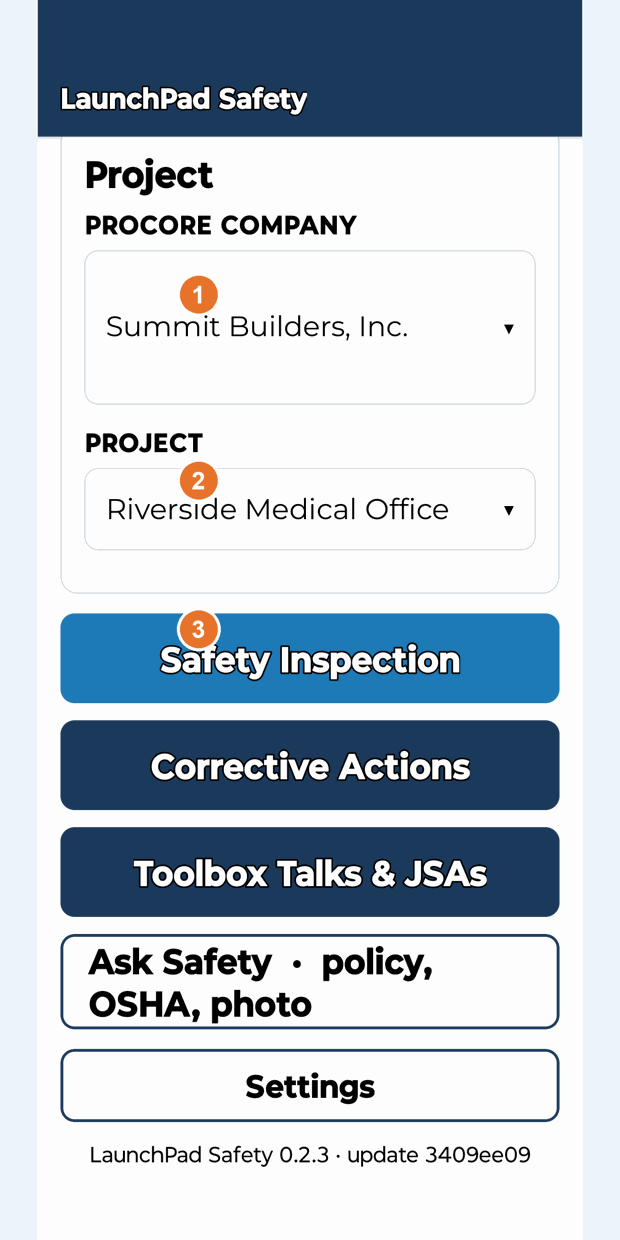
- Tap Safety Inspection. You see the inspections already started on this project.
- Tap Start new inspection. The app loads the project Directory.
- Choose the people. Inspectors is filled in with you when your name is in the project Directory. You can add a Point of Contact and Distribution now, or later. See "Choose who is on an inspection".
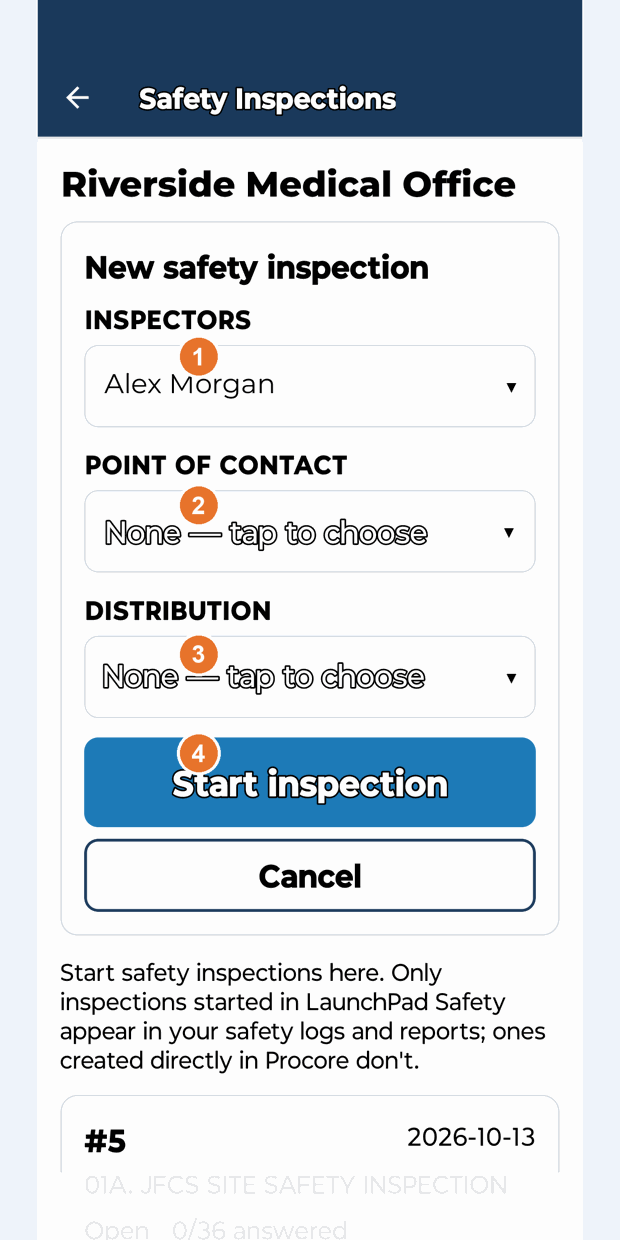
- Tap Start inspection. The inspection opens, ready to answer.
Steps on the website
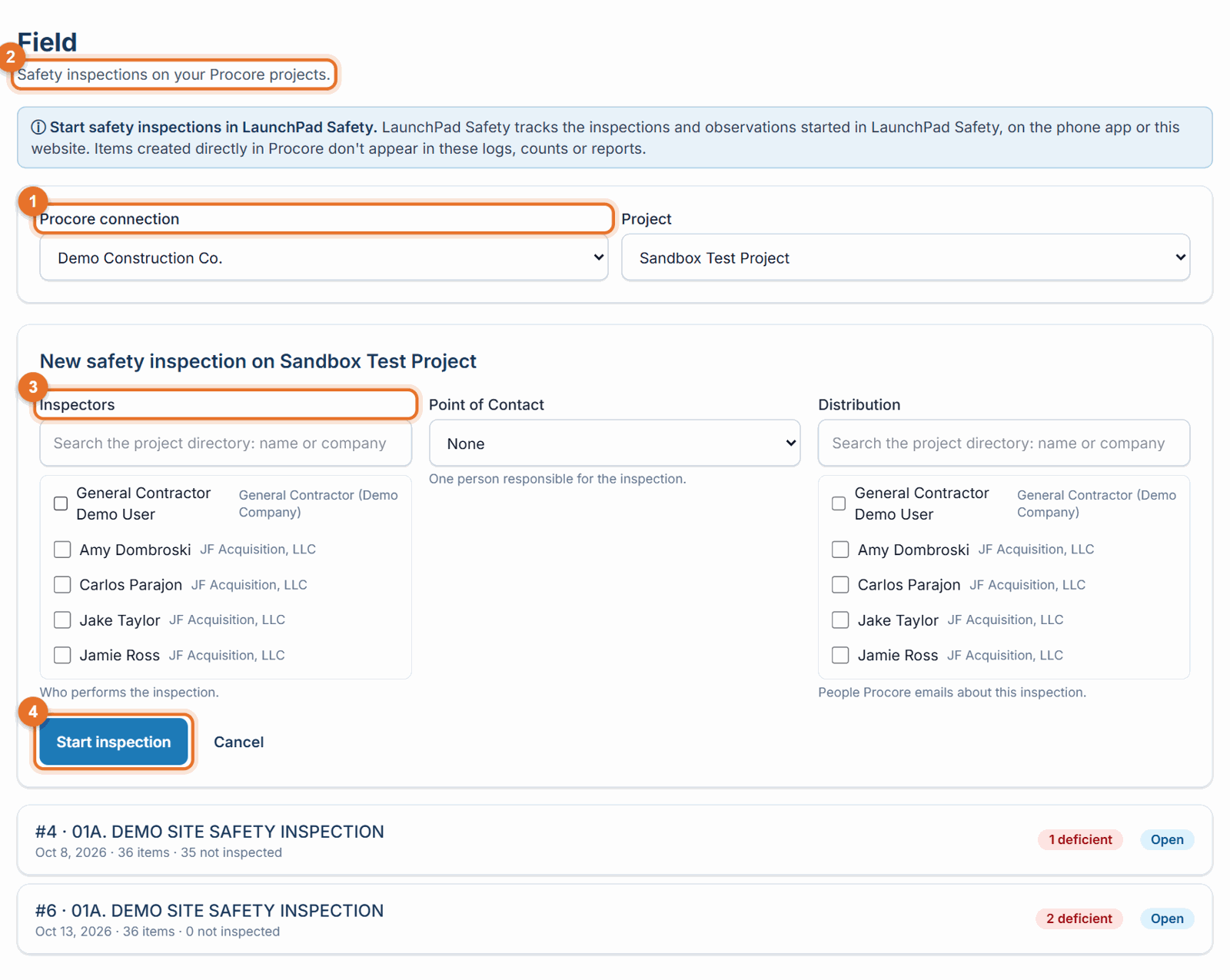
- Open Field and choose the Procore connection and Project.
- Click Start new safety inspection.
- Choose the people (Inspectors, Point of Contact, Distribution) and click Start inspection.
What is created in Procore
- A new inspection on the project, from your company's template, dated today.
- The people you chose (Inspectors, Point of Contact, Distribution).
- Weather from the U.S. National Weather Service, when your company has the weather field set up (see "Weather on inspections").
If something goes wrong
- "The safety inspection template is not available on this project": the template isn't on this project in Procore. Ask your Procore admin to add it in the project's Inspections tool, or your Administrator to check Settings → Connect Procore.
- "The inspection started, but the people could not be set": the inspection exists. Open it and set the people with Edit people.
- You don't see Start new inspection: your role can view inspections but not start them (Subcontractor Lead and Executive).
- "Choose a project on the Home screen first" (phone): go back to Home and pick a company and project.
Good to know
- Inspections created directly in Procore never appear in LaunchPad Safety.
- The inspection list shows each inspection's number, date, status, how many items are answered and how many are deficient.
Still stuck? Call or text (888) 207-2330 or email support@launch-pad-core.com.