
Choose who is on an inspection (Inspectors, Point of Contact, Distribution)
Pick the Inspectors, Point of Contact and Distribution from the project Directory when you start an inspection, and change them while it is open.
Every inspection has three people fields, saved in Procore. All three come from the project Directory in Procore, so anyone on the project (any company, including subcontractors) can be chosen.
| Field | What it means |
|---|---|
| Inspectors | Who performs the inspection (one or more people) |
| Point of Contact | One person responsible for the inspection |
| Distribution | People Procore emails about this inspection |
When you start an inspection
- Inspectors is filled in with you when your name matches someone in the project Directory. Add or remove people as needed.
- Point of Contact and Distribution start empty. Tap or click a field, search by name or company, and tick people. On the phone, tap Done when finished.
- Start inspection. The people are saved with the inspection in Procore.
Change the people later
- Open the inspection.
- Tap or click Edit people on the People card (phone and website).
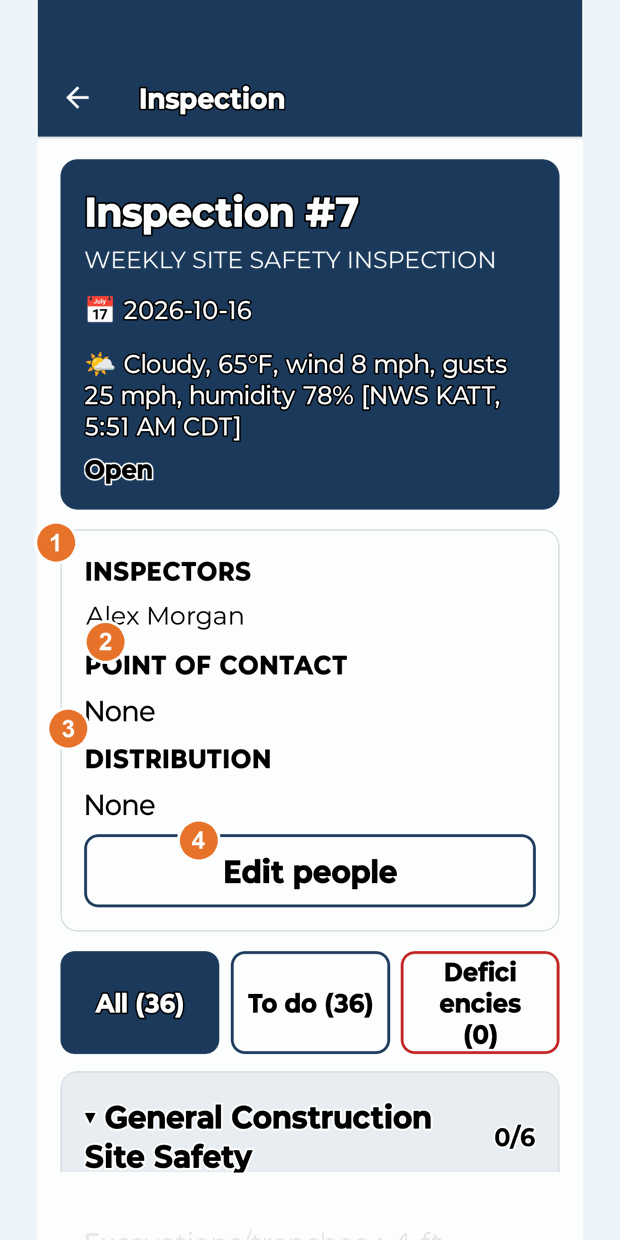
- Change the fields, then Save people. The website shows "People saved in Procore."
If something goes wrong
- Someone is missing from the list: they are not in the project Directory in Procore. Ask your Procore admin to add them to the project, then try again.
- No Edit people button: the inspection is closed, or your role can view but not inspect.
- "The inspection started, but the people could not be set": the inspection was created; set the people with Edit people.
Good to know
- You can change the people at any time until the inspection is closed.
- The same people are shown in Procore on the inspection.
Still stuck? Call or text (888) 207-2330 or email support@launch-pad-core.com.