
Choose your inspection template and corrective-action type
Pick the Procore inspection template LaunchPad Safety starts, the observation type it uses for corrective actions, and the field it writes the weather into.
Each connected Procore company needs two settings: which Procore inspection template LaunchPad Safety starts, and which observation type it uses when it creates corrective actions. Inspections can't start until the template is chosen.
Before you start
- The Procore company is connected. See Connect your Procore company.
- The inspection template exists in your Procore company. You can build one in Procore, or have the agent build one in the ✦ Agent Builder and publish it to Procore (see Build an inspection template with the agent).
Steps
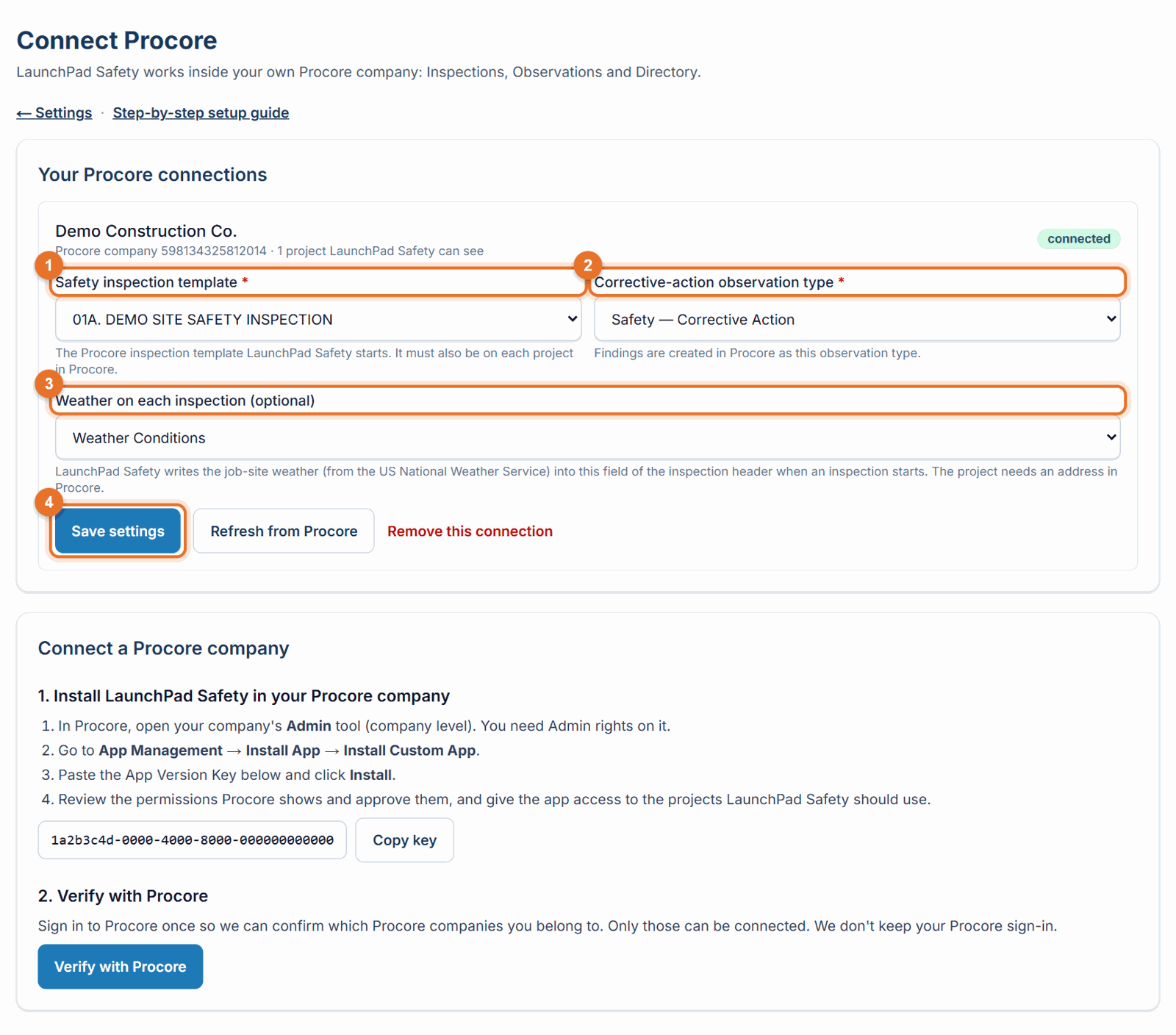
- Open Settings → Connect Procore and settings. Under Your Procore connections, find the company.
- Safety inspection template: choose the Procore inspection template LaunchPad Safety should start.
- Corrective-action observation type: choose the type your findings are created as. If your company has a Safety observation type called Corrective Action, it is chosen for you.
- Weather on each inspection (optional): choose the Procore field the weather goes into (for example "Weather Conditions"), or Don't record the weather. The list shows your Procore company's text custom fields that are on the inspection header. If there's none yet, create it first: see Add the weather and crews fields to your Procore inspections.
- Click Save settings.
- Put the template on your projects. When you publish a template or JSA from the Safety library, tick the projects under Put it on these projects: LaunchPad Safety puts it there, ready to inspect, with nothing to do in Procore. For a template already published, open it in the Safety library: On projects shows which projects have it (✓ ready to inspect); tick more and click Add to projects. LaunchPad Safety can only start a template on projects that have it. (A template built directly in Procore is added to projects in Procore: the company Inspections tool → the template → Assigned Projects.)
If something goes wrong
- "Choose the inspection template. Inspections can't start in LaunchPad Safety until you do." Complete steps 2 to 4.
- "The safety inspection template is not available on this project" Add the template to that project's Inspections tool in Procore (step 6).
- "Choose an inspection template from your Procore company", "Choose an observation type from your Procore company" or "Choose the weather field from your Procore company's custom fields". The list changed in Procore. Reload the page and choose again.
- Inspections show "Weather not recorded". Check that a weather field is chosen here, that the field is on the inspection template's header in Procore, and that the project has an address (with map location) in Procore. Weather comes from the US National Weather Service, so it is filled in for US projects only.
- The template you want isn't in the list. It isn't a company-level inspection template in Procore yet. Create it there (or publish it from the Safety library), then reload the page.
Good to know
- Hazards and contributing conditions come from your Procore company's own lists. When someone confirms a photo finding, they choose a hazard and a contributing condition from those lists. If you change the lists in Procore, click Refresh from Procore (on the Connect Procore page or the Dashboard) so LaunchPad Safety picks up the change.
- Each connected Procore company has its own template, observation type and weather field.
- The weather is written once, when the inspection starts. Inspections started before you chose a field stay as they are.
Still stuck? Call or text (888) 207-2330 or email support@launch-pad-core.com.