
Build an inspection template with the agent, start to finish
Have the agent draft a site inspection checklist, review and approve it, publish it to Procore, and use it for your inspections.
The agent can write a complete inspection checklist for the work you describe, with the regulation (or your company rule) behind every item. You review it, approve it, and publish it to Procore as a company inspection template. From then on it works like any Procore template, and LaunchPad Safety can start inspections from it. Inspection templates come with every plan.
Before you start
- You need to be the Administrator, Safety Personnel or a Project Administrator.
- Use the website (drafting isn't in the phone app).
- Optional but recommended: confirm your company safety manual and add your company rules first, so the draft follows them. See How the agent chooses the rule.
1. Draft it
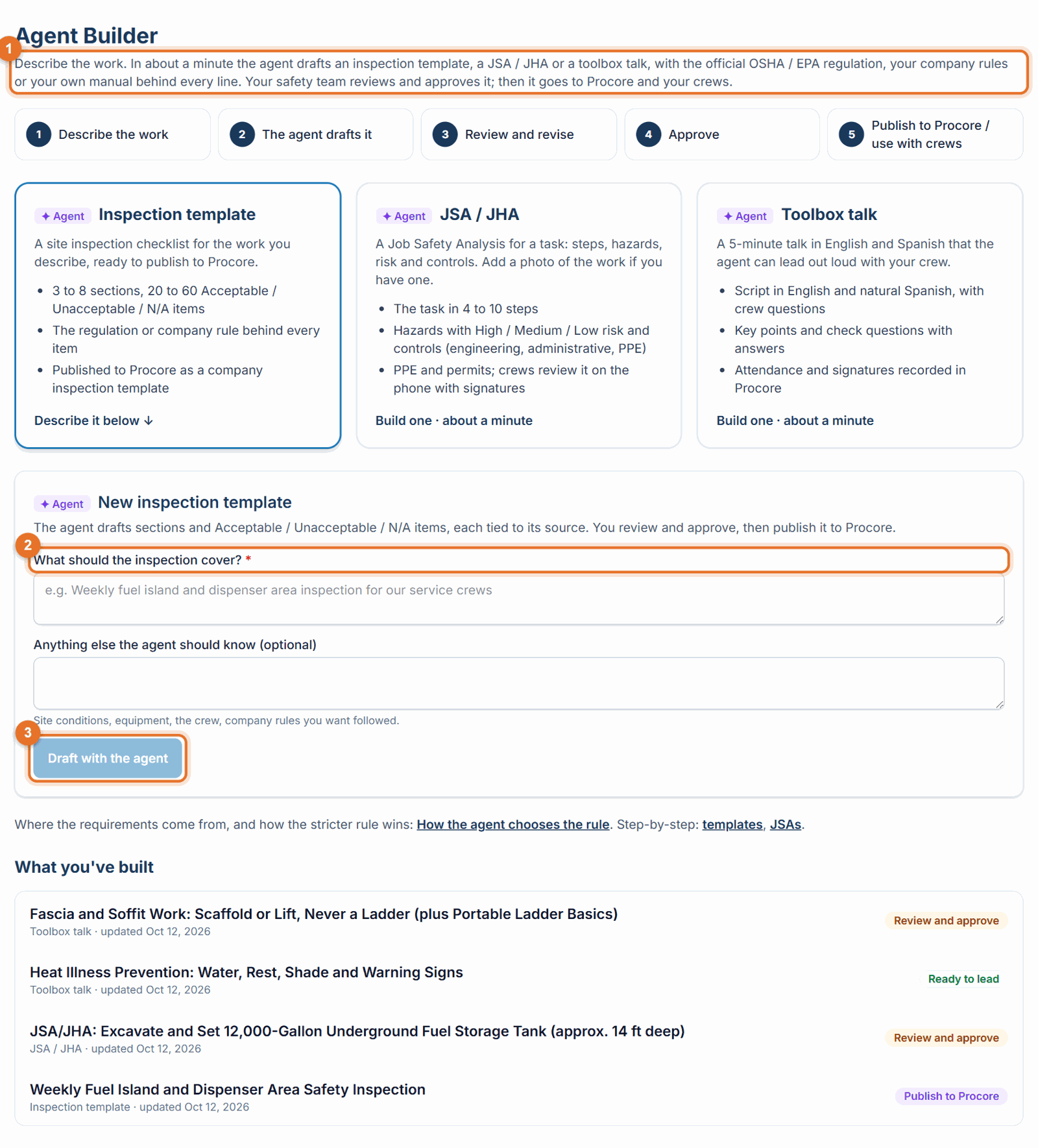
- Open ✦ Agent Builder in the menu and choose Inspection template. (You can also draft from the Inspection templates tab of the Safety library.)
- In What should the inspection cover?, describe the work and the site, for example "Weekly fuel island and dispenser area inspection for our service crews" or "Daily excavation and trenching inspection, trenches up to 12 ft".
- In Anything else the agent should know (optional), add details: equipment, how often it's used, who answers it, company positions you want followed.
- Click Draft with the agent. In about a minute the draft opens.
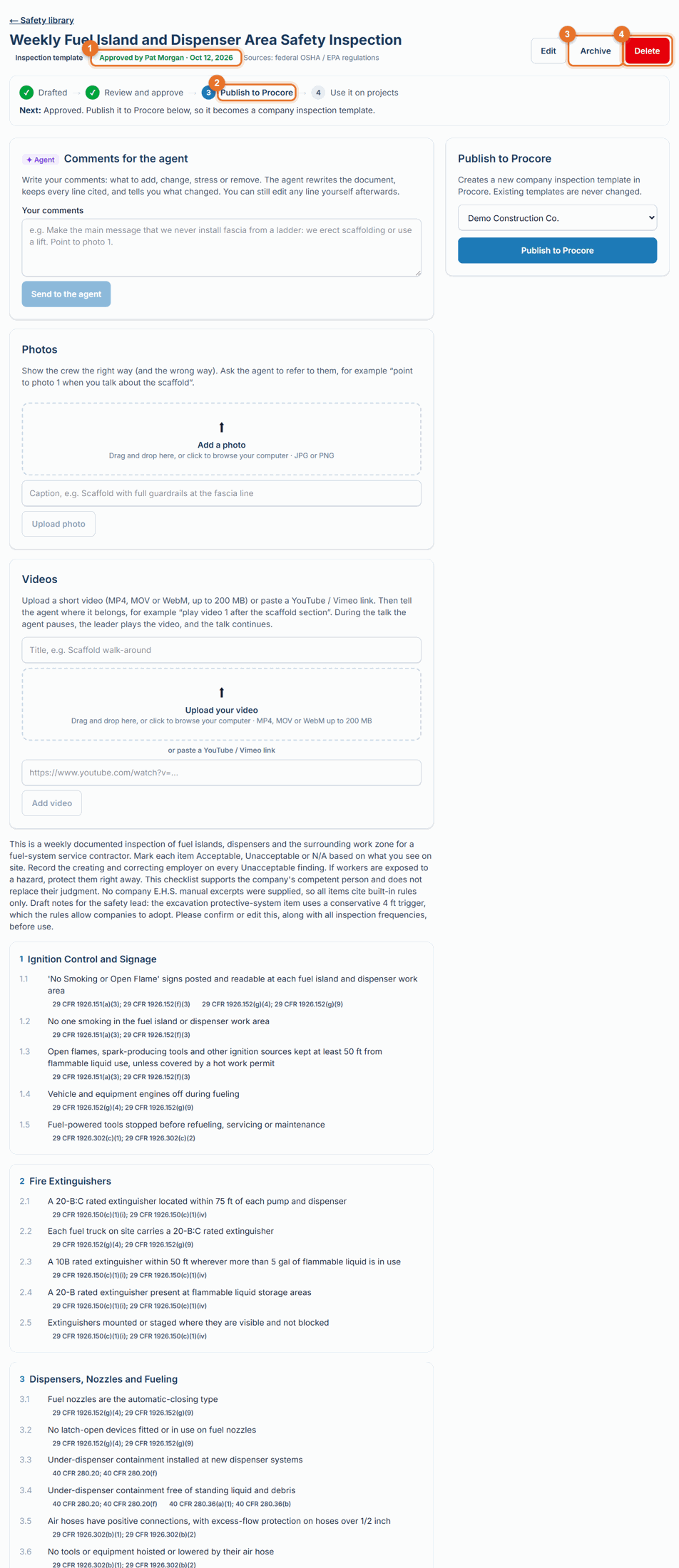
You get 3 to 8 sections and 20 to 60 items. Each item is written so it can be answered Acceptable / Unacceptable / N/A by looking at the site, and lists its sources underneath (for example 29 CFR 1926.651(j)(2) or Company rule CR-2).
Each document page shows where it is on the path (Drafted → Review and approve → Publish to Procore → Use it on projects) and what to do next.
2. Review and correct it
- Read ✦ Notes for the reviewer at the top: the agent's assumptions and the points to confirm.
- Check each item: is it something your crew can see and answer on a walk? Is anything missing for your sites?
- To change it, write what you want in Comments for the agent (for example "Add a section for traffic control at open stations" or "Remove the items about cranes") and click Send to the agent. It rewrites only what you asked for and tells you what changed. You can undo a revision.
- Or click Edit to change the wording yourself.
See Revise a draft for more.
3. Approve it
Click Approve when it's right. Approval records who approved it and when. To change it later, edit it and click Save and approve (or revise it and approve again); photos and videos don't affect approval.
4. Publish it to Procore
- On the approved template, under Publish to Procore, choose your Procore company and click Publish to Procore.
- It is created as a new company inspection template in your Procore. Existing Procore templates are never changed. If the name is taken, a version number is added (for example "(v2)").
5. Use it on your projects
- Add it to each project in Procore: in the project's Inspections tool, go to Configure → Templates → Import Templates and import it. (Procore requires this for every project that uses a template.)
- Make it the template LaunchPad Safety starts (optional): in LaunchPad Safety open Settings → Connect Procore and settings, pick it under Safety inspection template, and click Save settings. See Choose your inspection template.
- Start inspections as usual. See Start an inspection.
Good to know
- The agent cites only official regulation text and your own manual and rules; it never invents a regulation number.
- For fuel-system work it may also name industry standards (for example PEI RP1200) by number and title.
- A template stays yours: approved templates and the inspections made from them are your company's records.
- To make a new version later: revise the library template, approve it again, and publish again (it's created as a new template in Procore, so inspections already done keep their original version).