
Approve, publish to Procore, archive, restore or delete a library document
Approve a reviewed document for your team, publish a template or JSA to Procore, and archive, restore or delete documents.
A document the agent drafted stays a Draft until someone approves it. Only approved documents are shown to the rest of the team, can be led with a crew, or published to Procore. Administrators, Safety Personnel and Project Administrators can approve, publish, archive and delete.
Approve
- Open the document in Safety library and review every line. Edit or revise anything that isn't right.
- Click Approve. You'll see "Approved. It is now available to your team." The header shows "Approved by (your name) · (date)".
Changing an approved document
- Photos and videos (adding, removing or changing a caption) keep it approved; they don't change what the document requires.
- Editing the text: click Edit, make your changes, then choose:
- Save and approve: your changes replace the approved version straight away, approved by you. The team keeps an approved document the whole time.
- Save as draft: it goes back to Draft until someone approves it.
- An agent revision (Comments for the agent) or Undo last revision puts it back to Draft; click Approve when it's right.
Publish an inspection template or JSA to Procore
- Open the approved template or JSA. On the right, under Publish to Procore, choose the Procore company.
- Click Publish to Procore. (It reads Approve first to publish until the document is approved.)
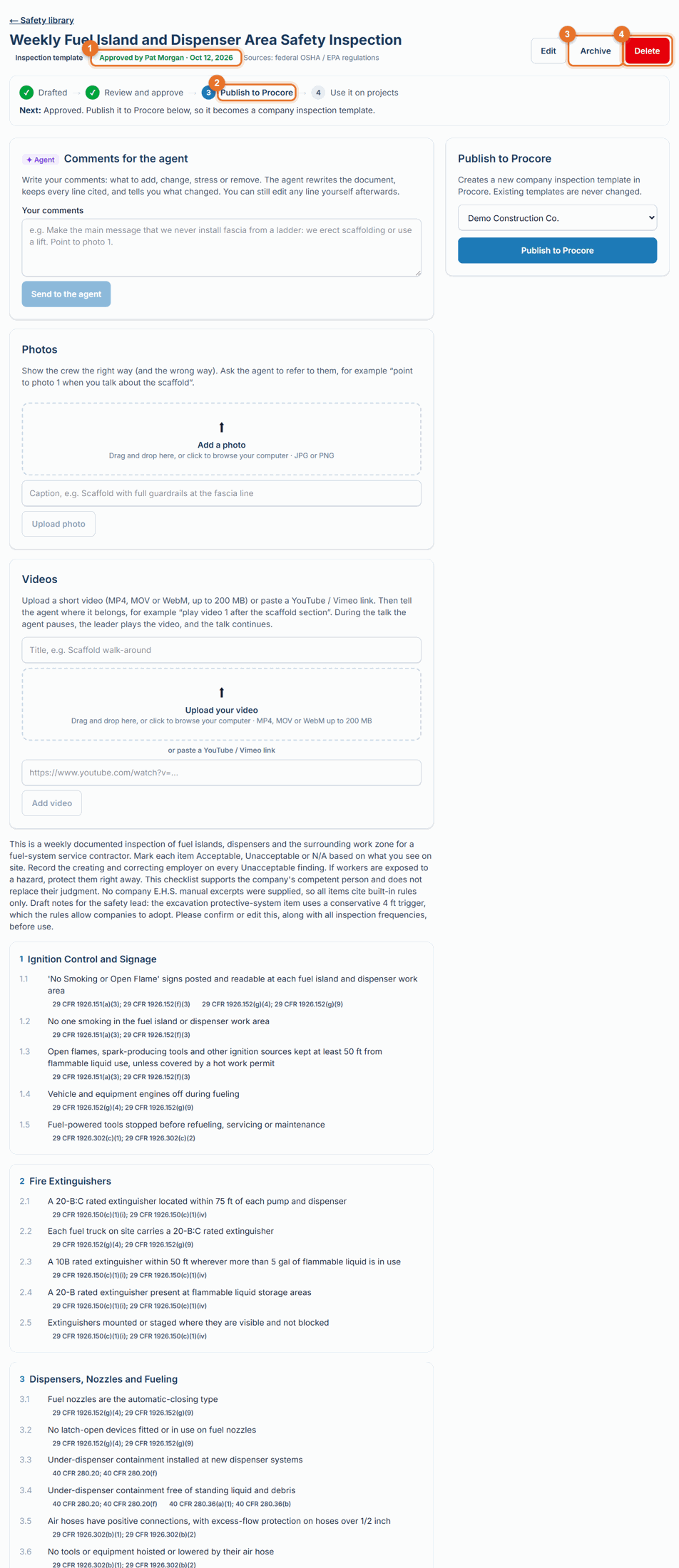
- LaunchPad Safety creates a new company inspection template in Procore with the Inspection Type Safety. JSAs are named "JSA · (title)". If a template with the same name already exists, the new one gets "(v2)", "(v3)" and so on. Existing Procore templates are never changed.
- Put it on your projects: before you publish, tick the projects under Put it on these projects. LaunchPad Safety puts the template there, ready to inspect: nothing to do in Procore. Later, the card's On projects list shows which projects have it (✓ ready to inspect); tick more and click Add to projects.
The card then lists what was published: "✓ (name) · (number) items · (date)". Toolbox talks aren't published as templates; each talk you lead is recorded in Procore instead (see Lead a toolbox talk).
If someone deletes a published template in Procore, the library shows Removed from Procore on it (and the card says "deleted in Procore"). Publish it again to put it back.
Archive and restore
- Click Archive to take a document out of the library list without deleting it (for example an old version). It disappears from the list for everyone. If it was published, you're asked whether to also remove it from Procore's inspection templates. Inspections already done with it stay in Procore either way.
- To bring it back: in the Safety library, tick Show archived documents, then click Restore on its row (or open it and click Restore). It comes back Approved if it was approved before it was archived, otherwise as a Draft.
Delete
Click Delete and confirm (and, if it was published, choose whether to remove its Procore template too). The document is removed from the library. Records already sent to Procore stay in Procore, and talk / JSA records stay in your logs.
If something goes wrong
- "Approve it first": approve the document, then publish.
- "Procore stopped the template build at … Nothing was left in Procore.": Procore refused part of the template. Try again; if it keeps happening, call (888) 207-2330 or email support@launch-pad-core.com with the message.
Good to know
- Publishing again after a change creates a new template version in Procore; the earlier one is left as it was.