
Lead a toolbox talk and record it in Procore
Have the agent lead an approved toolbox talk out loud in English or Spanish, collect the crew's signatures, and record it in Procore with a PDF.
Any approved toolbox talk can be led by the agent: it reads the talk out loud, stops at each pause so the crew can answer, shows the photos and videos at the right moment, and hands the meeting back to you for the check questions. Then the crew signs, and the talk is recorded in the project's Procore Inspections with the full PDF attached. Administrators, Safety Personnel, Project Administrators, Superintendents, Project Managers and Project Coordinators can lead and record talks. Toolbox talks come with Pro I and Pro II.
Before you start
- The talk must be Approved in the Safety library.
- Have the phone, tablet or computer where the crew can hear it (turn the volume up).
On the phone or tablet
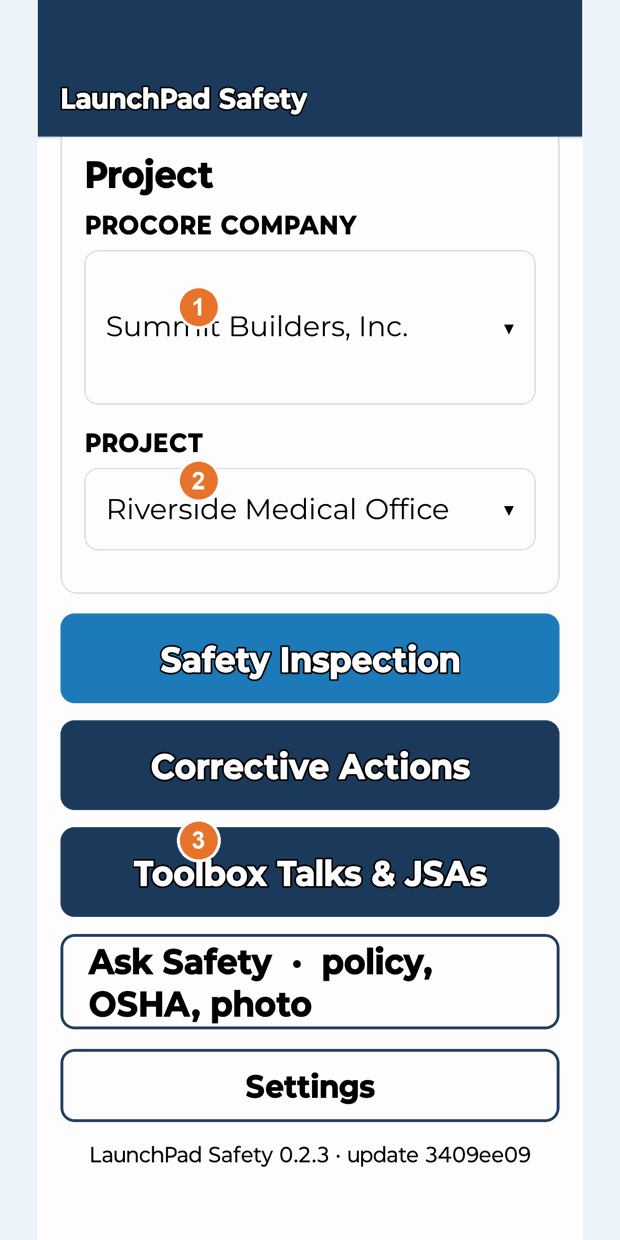
- On the home screen, choose the Procore company and Project, then tap Toolbox Talks & JSAs.
- Pick the talk under Approved toolbox talks.
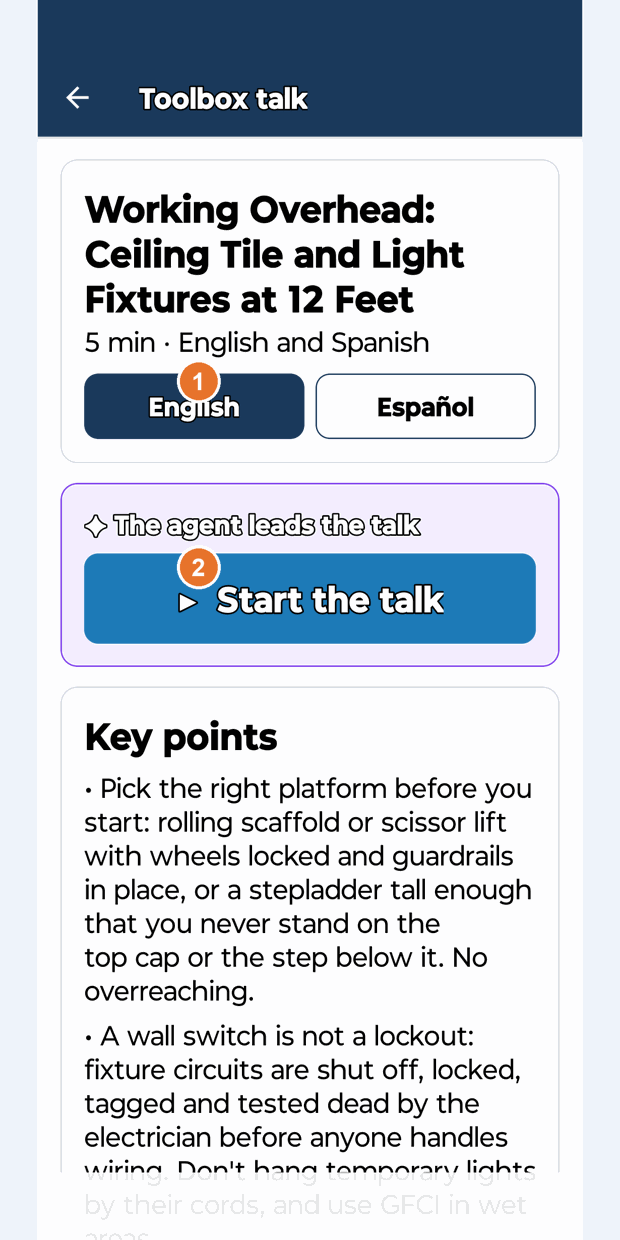
- Choose English or Español, then tap ▶ Start the talk.
- The agent reads the talk. At each pause it asks the crew a question and waits. When the crew has answered, tap ▶ Continue. You can ■ Stop, ▶ Resume or Restart at any time. When a photo is mentioned it appears on screen; for a video, play it, then tap Continue.
- At the end the agent hands over to you: go through the Check questions for the crew together.
- Under Record the talk, each crew member types their name and signs with a finger (+ Add crew member, then Accept). Add any Questions from the crew (+ Add a question, with the answer given) and notes if you like.
- Tap Record in Procore.
On the website
- Open the approved talk in Safety library. Use the English / Español switch above the talk.
- In Lead and record this talk, click ▶ Start the talk. The browser reads it aloud; use Continue, Stop, Resume and Restart the same way. (If your browser can't speak, you'll see "This browser cannot speak. Read the talk aloud, or use the phone app.")
- Choose the Procore company and Project.
- Under Attendance and signatures, click + Add crew member; each person types their Full name, signs with a finger, stylus or mouse, and clicks Accept.
- Add Notes and any Questions from the crew (with the answer given) if you like.
- Click Record the talk in Procore.
What gets recorded
- You'll see "Recorded, and saved in Procore as a closed inspection with the PDF attached."
- In Procore: a closed inspection named "Toolbox Talk · (title) · (date)" on the project, with the attendees in the description and the PDF attached. Uploaded videos shown in the talk are attached too (up to 100 MB in total).
- In the project's Daily Log, under Notes for the talk's date: one line, for example "Toolbox Talk: Ladder Safety. Led by Sam Super, 12 attendees (English). Full record with signatures in Inspections: …". Anyone reading the day's log sees the talk happened; the details stay in the inspection.
- The PDF: the talk in the language you used, attendance with each signature, key points, check questions, photos, the crew's questions and your notes, with your company logo.
- In LaunchPad Safety: Safety library → Talk and JSA records and Logs → Toolbox talk & JSA log, where you can download the PDF again.
If something goes wrong
- "Recorded in LaunchPad Safety. Procore could not be updated right now; the record is kept here.": the record and PDF are saved in LaunchPad Safety. The log shows "Pending" for Procore.
- The record button is greyed out: choose the project and add at least one signed crew member.
- "Only approved toolbox talks and JSAs can be recorded": approve the talk first.
Good to know
- Deleting a record from Talk and JSA records removes it from the LaunchPad Safety log only; the inspection in Procore is not changed.
- Crew attendance is not counted in the People report.
Still stuck? Call or text (888) 207-2330 or email support@launch-pad-core.com.