
PDF reports for one inspection, observation or talk, and your report logo
Download a branded PDF of a single inspection, observation or toolbox talk / JSA record, and put your company logo on every report.
Every PDF from LaunchPad Safety carries a logo at the top: the LaunchPad logo until your Administrator uploads your own.
Download a PDF of one record
- From the record itself (website): click PDF at the top of an inspection page, or PDF on a corrective action's row on the Corrective Actions page.
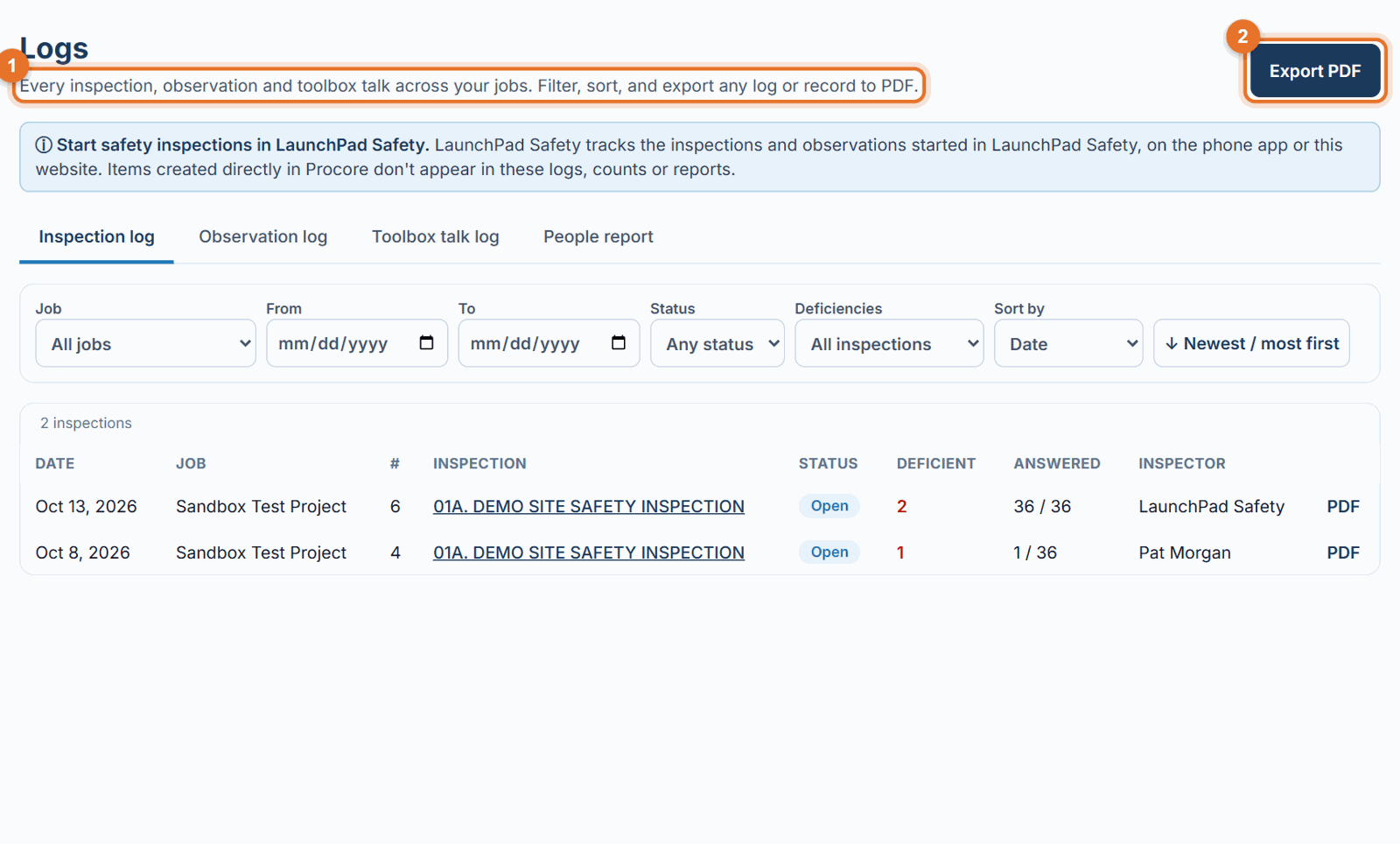
- From Logs (website): open Logs, pick the Inspection log, Observation log or Toolbox talk & JSA log, find the row (use the filters if needed) and click PDF at the end of it.
- On the phone: tap PDF report on an inspection, or Open the PDF report on a corrective action. It opens in your phone's browser, where you can share or save it. The link works for 10 minutes.
What each PDF contains: - Inspection: the job, date, status and weather (when recorded), then every section with each item, its answer ("Not inspected" if unanswered, deficient answers in red) and the corrective actions raised on it, with their status and due date. - Observation (corrective action): status, priority, due date, assignee and their company, type, created and closed dates, location, the full description (with its citations) and up to 6 photos from Procore. - Toolbox talk or JSA record: the talk or JSA as delivered (in the language used), attendance with each person's signature, photos, the crew's questions and notes.
For whole lists use Export PDF at the top of a log, the Dashboard or the People report.
Put your company logo on your reports (Administrator)
- Open Settings and find Report logo.
- Under Upload your company logo, choose a PNG or JPG (wide logos work best; under 5 MB).
- Click Save logo. The preview shows "Your company logo".
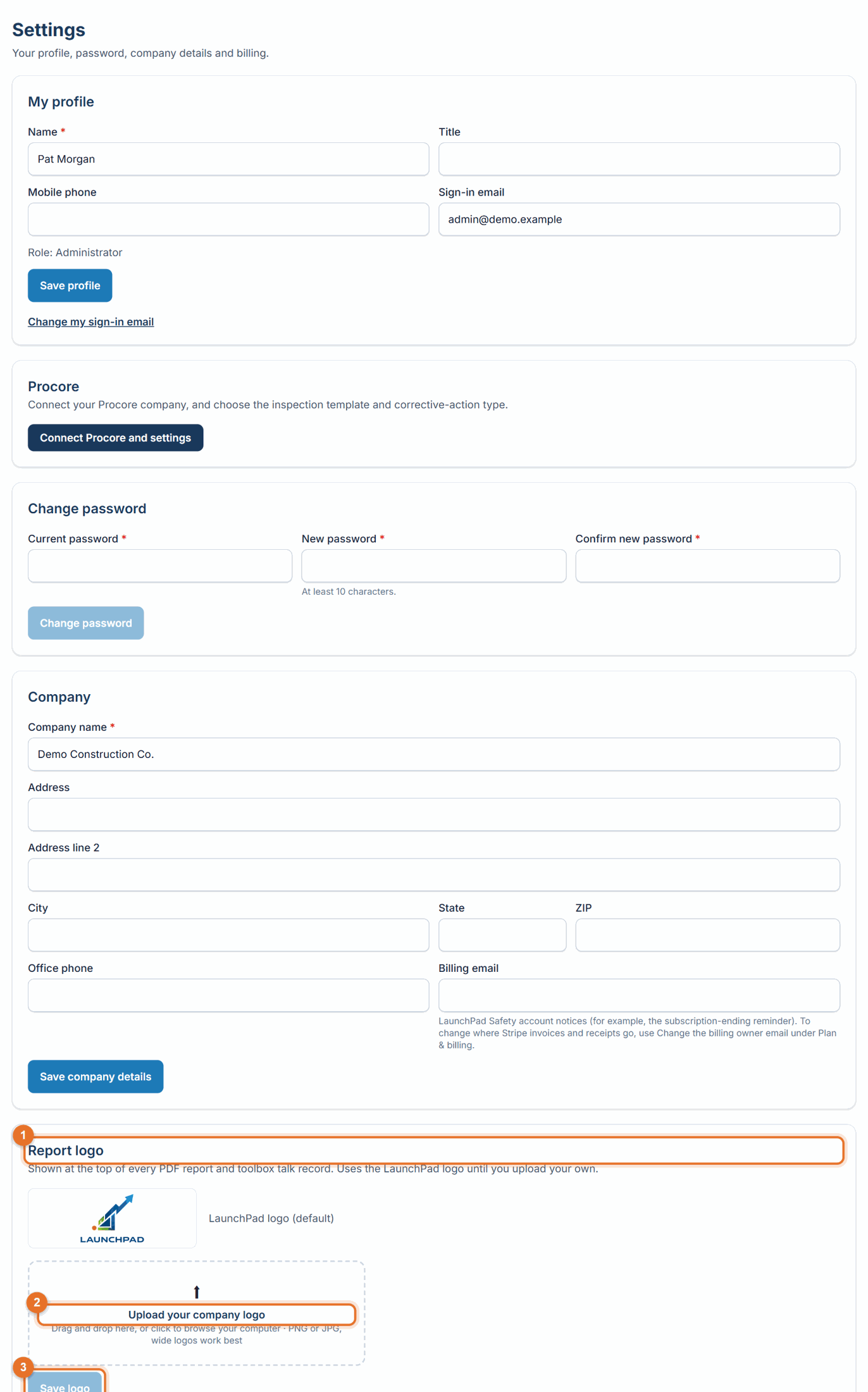
- To go back, click Use LaunchPad logo.
The logo is used on every new PDF: logs, single records, the dashboard, the People report, and the toolbox talk / JSA PDFs sent to Procore.
Reports in Spanish (Administrator)
- Open Settings → PDF report language and choose Español (Spanish). The choice applies to this computer.
- Download any report as usual. It is translated when you download it, and the file name ends in -es.
Your records stay in English. The OSHA 300, 300A and 301 get Spanish headings and labels (the Spanish terms of OSHA's Spanish forms), but their entries stay as recorded and are never sent to the AI. They say they are a copy for reference: the English form is your official record, and the one to post and upload. Names, case numbers, dates and figures are kept as written. Choose English to go back.
If something goes wrong
- "Logo must be under 5 MB" or "Upload a PNG or JPG image": save the logo as a smaller PNG or JPG.
- "This observation was not created in LaunchPad Safety": PDFs are only for items started in LaunchPad Safety.
- "This report link has expired. Open the report again from the app." (phone): tap the PDF button again.
Good to know
- On the phone, inspection and corrective-action PDFs open in the browser. Talk and JSA record PDFs are attached to their inspection in Procore and downloadable from the website's Toolbox talk & JSA log.
- Only the Administrator can change the report logo.