
Choose which Procore projects LaunchPad Safety can see
Control which Procore projects appear in LaunchPad Safety, and add a project later.
LaunchPad Safety shows only the Procore projects the app has been given access to. That access is set in Procore, by your Procore administrator, on the installed app.
Steps: give the app its projects
- In Procore, open the company Admin tool → App Management.
- Open the installed LaunchPad Safety app and set which projects it can access (its permissions / project access).
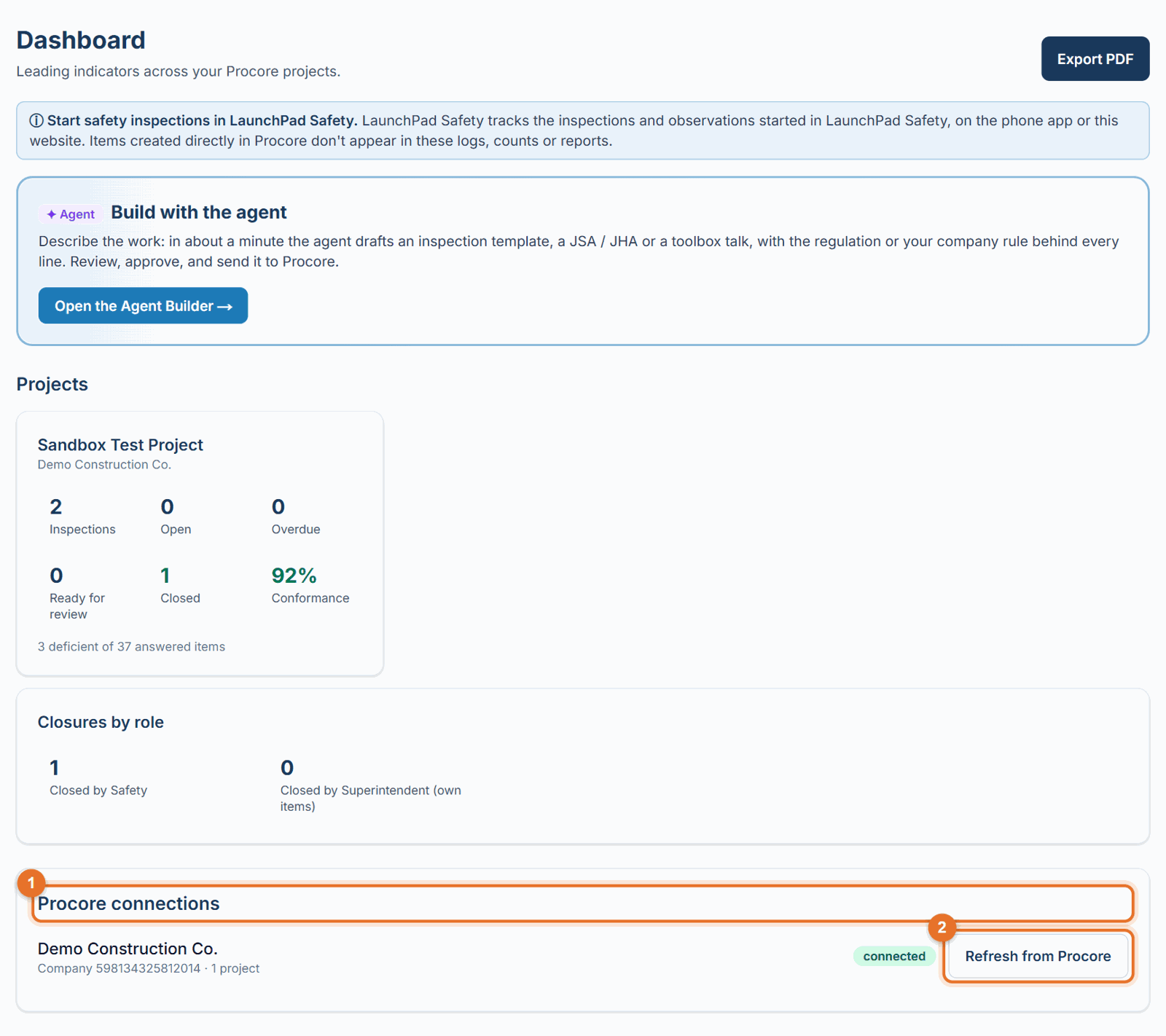
- In LaunchPad Safety, refresh the list. On Settings → Connect Procore and settings (under the company) or on the Dashboard (under Procore connections), click Refresh from Procore.
Add a project later
- Give the app access to the new project in Procore (steps above).
- Add your safety inspection template to that project's Inspections tool in Procore. Without it, inspections can't start there. See Choose your inspection template and corrective-action type.
- Click Refresh from Procore on the Connect Procore page or the Dashboard.
If something goes wrong
- A project is missing. The app doesn't have access to it in Procore yet, or you haven't refreshed. Check both.
- "The safety inspection template is not available on this project." Add the template to that project's Inspections tool in Procore.
Good to know
- Settings → Connect Procore and settings shows how many projects LaunchPad Safety can see for each connected company.
- Only the Administrator can refresh from Procore.
Still stuck? Call or text (888) 207-2330 or email support@launch-pad-core.com.