
Upload, update and confirm your company safety manual
Upload your company's EHS manual, update a single section or replace the whole manual, review what changed, and confirm each revision before the agent uses it.
LaunchPad Safety does not supply a safety manual. Until your company confirms its own, the AI agent works from the federal OSHA and EPA regulations only. Once your manual is uploaded and confirmed, the agent uses it together with the regulations in Ask Safety, photo review, the Safety library and site orientations, cites the program and page, and applies whichever requirement is stricter.
Before you start
- The Administrator, Safety Personnel or a Project Administrator uploads, updates and confirms the manual.
- Upload a text-searchable PDF (not scanned images) or a Word (.docx) file, up to 100 MB. PDFs are split into programs on their bookmarks and cited by page. Word files are split on Heading 1 and cited by program (Word has no fixed pages).
Upload your manual
- Open Safety Manual in the menu.
- Enter a Manual title (for example "Company EHS Manual, 2026 edition"), choose the file and click Upload manual.
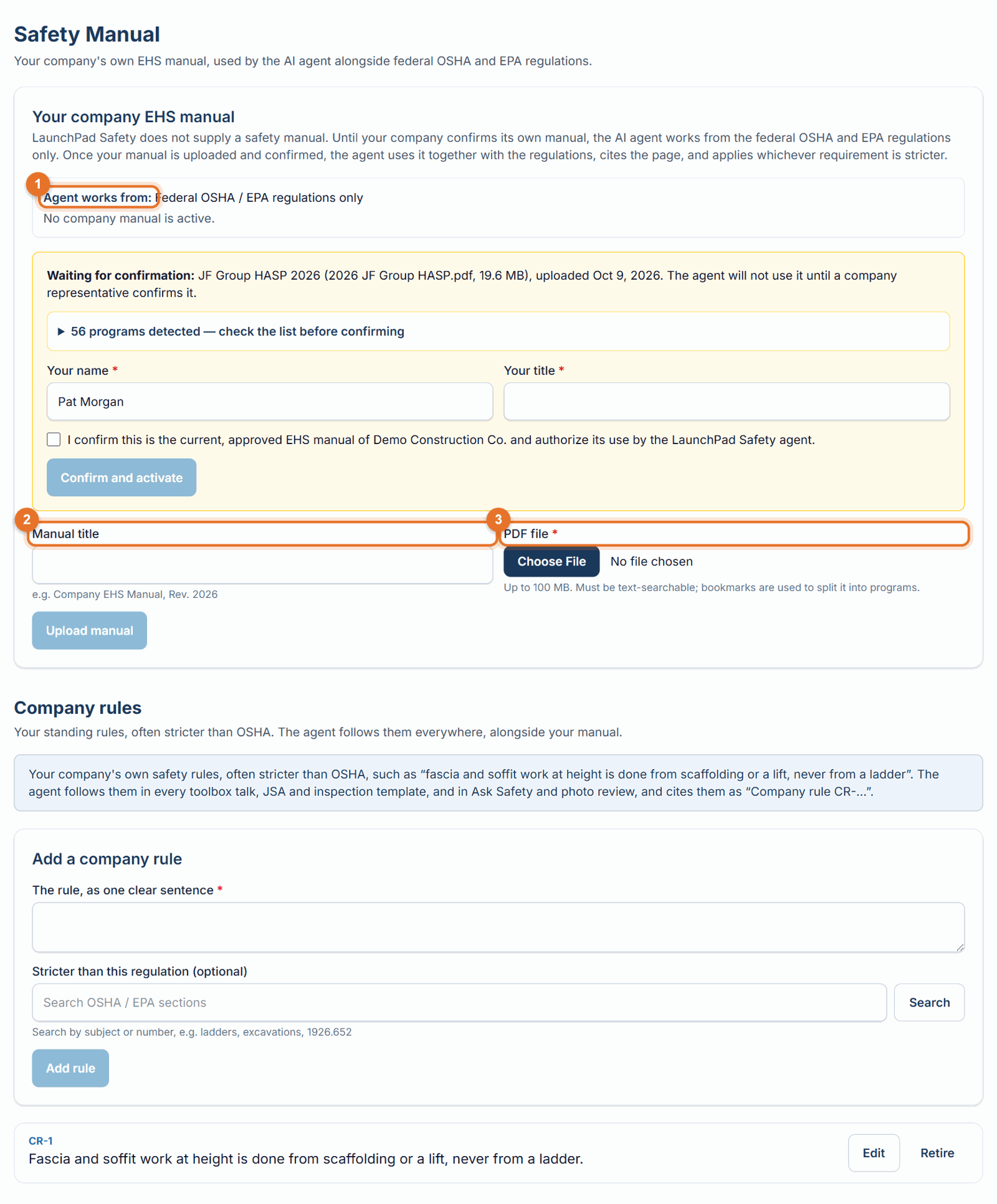
- Check the list of sections, then confirm it (below). It becomes Rev 1.
Update one section
Use this when you revise a single program, such as Fall Protection, and the rest of the manual stays the same. 1. Under Sections, click Replace next to the section and choose a PDF or Word file of just that program. Add a short note of what changed if you like, then click Replace section. 2. Add a section adds a new program (choose where it goes). Retire removes one. 3. You can make several changes; they collect in one update waiting for confirmation. The agent keeps using the current revision until it's confirmed.
Replace the entire manual
Click Replace the entire manual, choose the new file and upload it. Its sections are matched to the current ones by title, so you see which programs changed, which were added and which were retired.
Review and confirm
- The What changes box lists every changed, added and retired program. For each changed program the agent writes a short summary and marks it Stricter, Looser, Mixed or Wording only. If a new requirement may be less protective than federal OSHA, it shows Check against OSHA with the section to look at.
- Read the changed sections, then enter Your name and Your title, tick the confirmation and click Confirm as Rev 2 (3, 4…). The previous revision is kept in Revision history.
- Changed your mind? Discard update leaves the manual as it is.
After a revision is confirmed
- Toolbox talks, JSAs and inspection templates that cite a changed or retired program are marked Manual changed: review in the Safety library. Open one and choose Have the agent update it (then approve the new draft), or It still holds: mark reviewed.
- Site orientations that cite a changed program show the same notice under Create Site Orientation.
- New citations show the revision, for example Rev 2 · Fall Protection, p. 3, so you can always tell which version of your rule the agent applied. Records made earlier keep the revision they cited.
If something goes wrong
- "This file has almost no readable text (it may be scanned images)." Export it as a text-searchable PDF (or run it through text recognition), or upload the Word file.
- "The file is larger than 100 MB." Split it into volumes or compress it.
- "Upload a PDF or a Word (.docx) file." Older .doc files: save them as .docx first.
- "Upload and confirm the whole manual first." Section updates need a confirmed manual to update.
- "There is no section called …" The section may have been renamed or retired in the pending update; check the list.
Good to know
- The agent quotes your manual word for word and gives the page. It never invents a quote.
- Where your manual and the regulation both cover a point, the stricter one is applied and the agent says which.
- Every revision's files are included in Download your company's records.
- For short standing rules, use Company rules instead of editing the manual.