
Change your sign-in email or the billing email
Change your own sign-in email, and (Administrator) the billing owner email that gets Stripe invoices and receipts, each confirmed with a code sent to the new address.
There are three different emails in LaunchPad Safety. You can change all of them yourself on the website, in Settings. Each change to a sign-in or billing owner email is confirmed with a 6-digit code sent to the new address.
Your sign-in email
This is the email you sign in with. Anyone can change their own. 1. Open Settings → My profile and click Change my sign-in email. 2. Enter the New email and your Current password, then click Send the code. 3. Check the new inbox for "Confirm your new LaunchPad Safety sign-in email" and enter the 6-digit code. 4. Click Confirm. You see "Your sign-in email is now …". Sign in with the new email from now on, on every device. Your old address gets an email saying the change was made.
The billing owner email (Stripe invoices and receipts)
Receipts, invoices and the one-time code for Manage billing go to the billing owner. Only the Administrator can change it. 1. Open Settings → Plan & billing and click Change the billing owner email. 2. Enter the New email and click Send the code. 3. Enter the code from the email "Confirm the new billing email for LaunchPad Safety" (sent to the new address), then click Confirm.
The new address replaces the old one in LaunchPad billing and in Stripe, so invoices, receipts and the Manage billing sign-in go there from then on. The previous billing owner gets an email saying the change was made. The company's Billing email in Settings → Company is updated to the same address.
The company's billing email (Settings → Company)
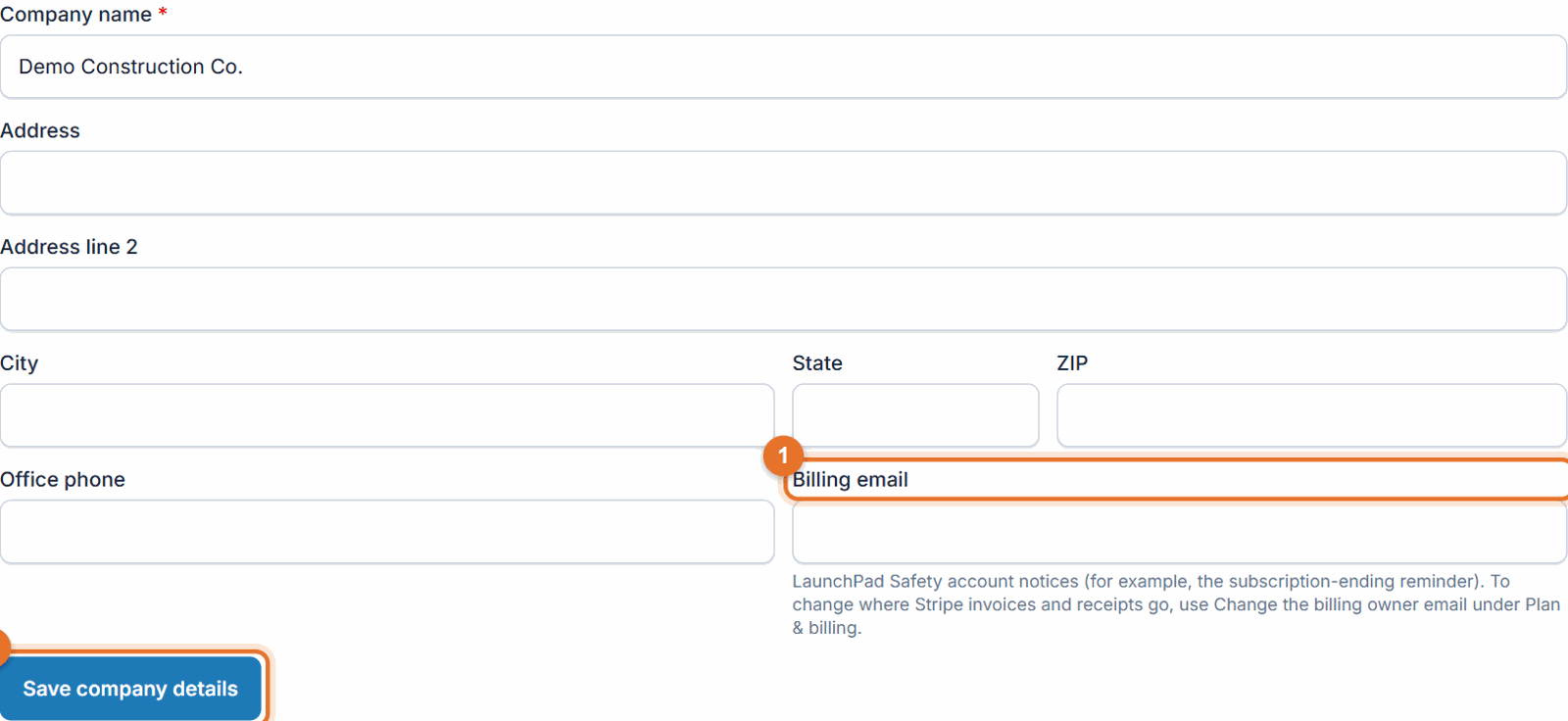
The Administrator can also edit Billing email in Settings → Company and click Save company details. LaunchPad Safety uses this address for its own account notices, such as the reminder when a subscription ends and the notice when the plan's user limit is reached. Changing it here does not change where Stripe sends invoices; use Change the billing owner email for that.
If something goes wrong
- "Your current password is incorrect": check for caps lock, or reset it with Forgot password? after signing out.
- "That email already has a LaunchPad Safety sign-in": another account uses it. Pick a different address, or call us if it should be yours.
- "That is already your sign-in email": nothing to change.
- "You sign in with LaunchPad. Change your email in your LaunchPad account instead.": you sign in through LaunchPad, so your email is managed there.
- "That code is incorrect or has expired. Request a new one.": codes last 30 minutes and only the newest works. Click Use a different email (or start again) to get a new one.
- "We could not send the code to that address. Check it and try again.": check the address for typos.
- "The billing email could not be changed right now (…). Try again in a minute.": a temporary billing problem; nothing was changed. Try again, or call (888) 207-2330.
- The Change the billing owner email link isn't there: you aren't the Administrator, or your company's billing was set up by hand. Call (888) 207-2330 and we'll change it.
Good to know
- Email changes are on the website only, not in the phone app.
- Leaving your company? Your Administrator invites the new person with their own email instead, and removes you on the Team page.