
Your profile and password
Update your name, title and mobile phone, change your password, or reset a forgotten password with an emailed code.
Your profile and password belong to you, not your company. You can change them yourself in Settings, on the website or in the phone app.
Update your profile
- Open Settings → My profile.
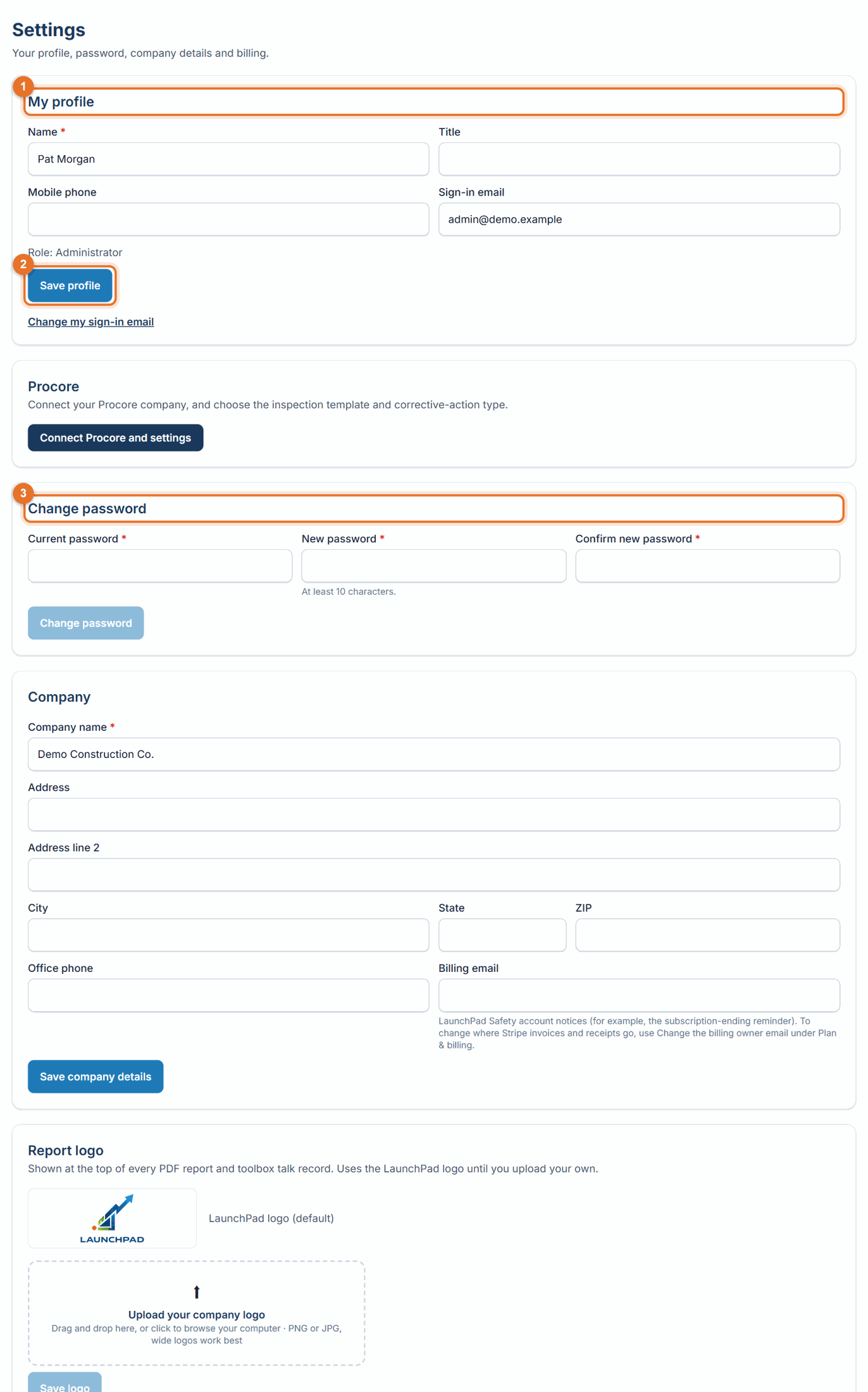
- Change Name, Title or Mobile phone. Your name appears on inspections, findings and talk records.
- Click Save profile.
Change your password
- Open Settings → Change password.
- Enter your Current password, then the New password twice. It must be at least 10 characters and different from the current one.
- Click Change password. Use the new password next time you sign in, on every device.
Forgot your password
- On the sign-in page, click Forgot password? (in the phone app, tap Forgot password?).
- Enter your email and click Email me a code. We email a 6-digit code. It expires in 15 minutes.
- Enter the code and your new password twice, then click Set password and sign in.
If something goes wrong
- "Current password is incorrect": check for caps lock. If you've forgotten it, sign out and use Forgot password?.
- "Use a password of at least 10 characters": choose a longer password.
- "That code is incorrect or has expired. Request a new one.": the code is older than 15 minutes, was typed wrong too many times, or a newer one was sent. Click Email me a code again.
- No code arrived: check junk or spam, wait a minute, then ask for a new code. Only the newest code works.
Good to know
- To change your sign-in email, use Change my sign-in email under My profile on the website. See Change your sign-in or billing email.
Still stuck? Call or text (888) 207-2330 or email support@launch-pad-core.com.