
Get the phone app and the desktop app
Install LaunchPad Safety on an Android phone or tablet, join your company, keep it updated, and install it on your computer.
LaunchPad Safety runs on Android phones and tablets and on the website. iPhone and iPad are coming. You use the same sign-in everywhere.
Install on Android
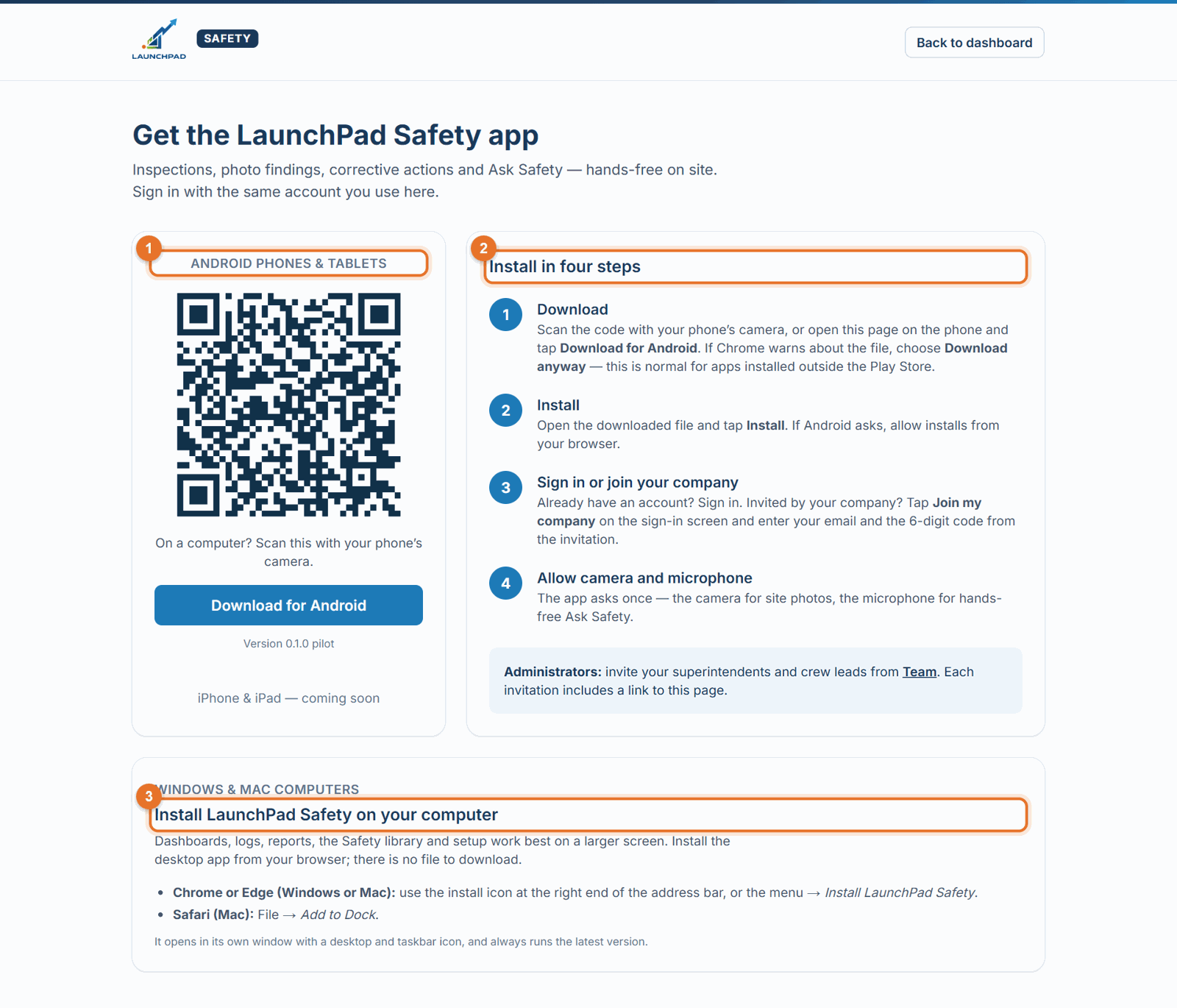
- Open the Get the app page (from the website menu, or the link in your invitation email). On a computer, scan the QR code with your phone's camera.
- Tap Get it on Google Play (or Download for Android) and install it. If you downloaded the file directly and Chrome warns about it, choose Download anyway, open the file and tap Install; allow installs from your browser if Android asks.
- Allow the camera and microphone when the app asks: the camera for site photos, the microphone for hands-free Ask Safety.
Sign in or join your company
- Already have an account? Enter your email and password and tap Sign in.
- Invited by your company? Tap Join my company. Enter the email the invitation was sent to and the 6-digit invite code, your name, and create a password (at least 10 characters). Tap Join and sign in.
- Already use LaunchPad Safety with another company? Enter your current password instead of a new one.
Keep it updated
When there are new features or fixes, the app shows Update available. Tap Accept update: the app restarts in a few seconds and you stay signed in. When a new version of the app itself is out, it shows New version … available; tap Install.
Install on your computer (Windows or Mac)
Dashboards, logs, reports, the Safety library and setup work best on a larger screen. On the Get the app page, under Windows & Mac computers: - Chrome or Edge: click Install on this computer if you see it, or use the install icon at the right end of the address bar, or the menu → Install LaunchPad Safety. - Safari (Mac): File → Add to Dock. It opens in its own window with a desktop and taskbar icon, and always runs the latest version. There is no file to download.
If something goes wrong
- "Enter the 6-digit invite code from your email." The code is in the invitation email. It expires after 7 days; ask your Administrator to invite you again.
- "No Procore connections are available yet." Your Administrator hasn't connected Procore. Ask them, then pull down to refresh.
- Not invited yet? Ask your company's Administrator. New company accounts are set up on the website, not in the app.
Good to know
- Belong to more than one company? Switch in the app under Settings → Your companies.
- Help on the home screen opens Ask support, the help articles and the call / text / email buttons.
- Poor signal on site? Answers you tap are kept on the phone and sent automatically when the signal is back; see Working with poor signal.
- Setup, billing, the Agent Builder and email changes are on the website.