
Invite, re-invite or remove people on your team
Send an invitation so a co-worker can join your company, see open invitations, and remove someone who has left.
Only your company's Administrator can invite people. Each person gets an email with a 6-digit invite code and joins from the phone app or the website.
Before you start
- You need the Administrator role.
- Check Users on your plan at the top of the Team page. Active users and open invitations both count.
Steps
- Open Team. At the top you see how many of your plan's users are in use, and the Invite a team member form.
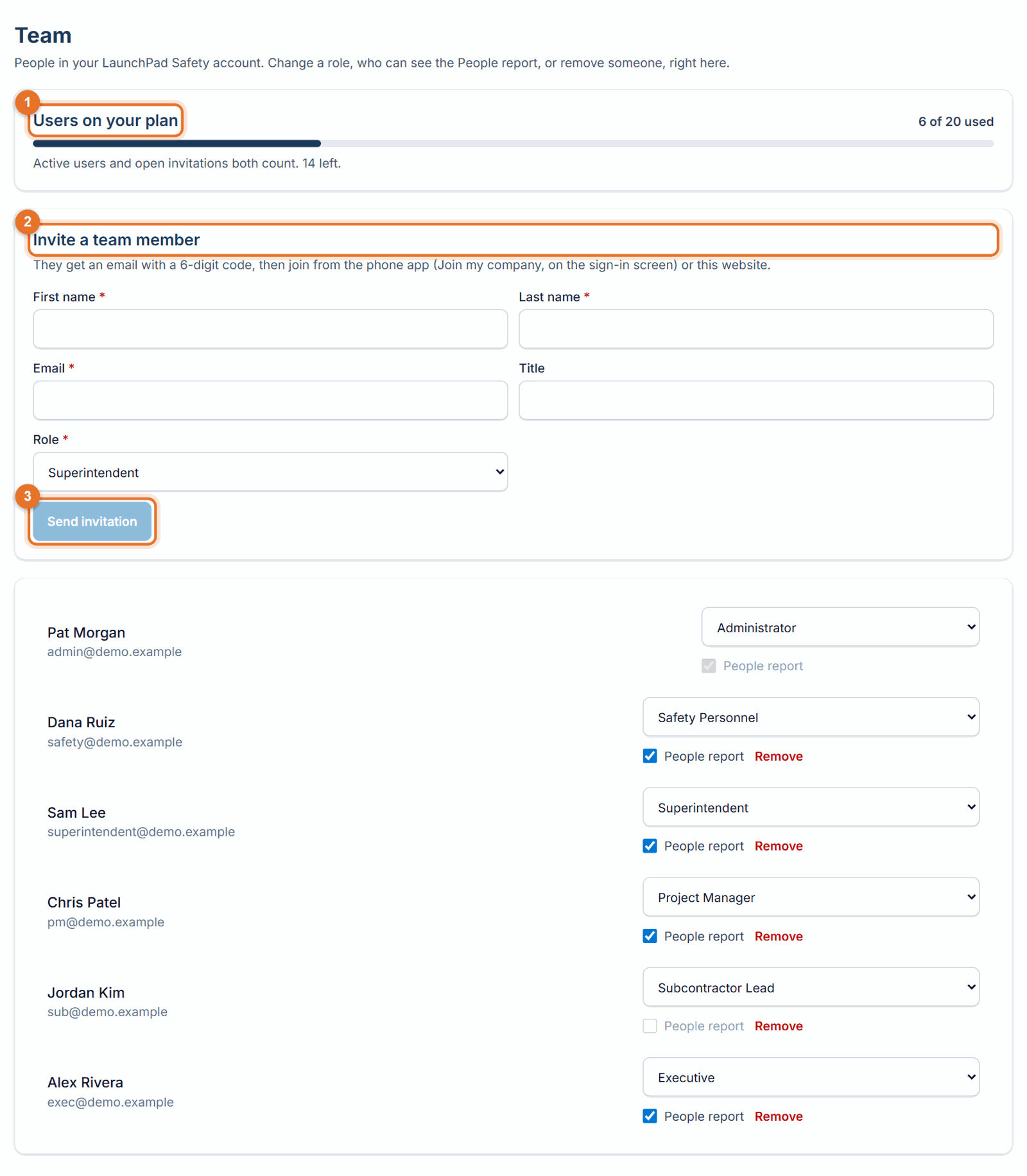
- Fill in First name, Last name and Email. Title is optional.
- Choose the Role. It decides what the person can do (see Roles and permissions). You can change it later on the same page.
- Click Send invitation. You see "Invitation sent to …".
What the person does
- They open the email "… invited you to … on LaunchPad Safety". It has the invite code. The code expires in 7 days.
- On a phone: get the app at safety.launch-pad-core.com/get-app, open it, tap Join my company, and enter the email, the code and a new password (at least 10 characters).
- On a computer: go to safety.launch-pad-core.com/join, enter the email and the invite code, choose a password, and click Join and sign in.
- Already use LaunchPad Safety with another company? They enter their current password instead of a new one, then switch companies from the company name at the top of the screen, or in the phone app under Settings → Your companies (see Switch between companies).
If something goes wrong
- "That person is already on your team": they have already joined. Look for them in the team list.
- "You're using X of the Y users on your plan…": your plan is full. The billing owner can upgrade under Manage billing (see Plans and pricing). We also email the billing owner. During a free trial you see "Your free trial includes N users. Choose a plan to add more people." instead.
- The code expired: click Resend next to their invitation on the Team page. A new code replaces the old one.
- The email didn't arrive: ask them to check junk or spam. If it still isn't there, click Resend.
Open invitations
People you invited who haven't joined yet are listed on the Team page with an Invited label. They count toward your plan's users until they join or you cancel. - Resend sends the email again with a new code. - Cancel invitation withdraws it and frees the seat.
Remove someone who has left
- Open Team and find the person.
- Click Remove and confirm.
They can no longer sign in to your company, and their seat is free right away. Everything they recorded (inspections, findings, talks and records) stays with your company and still shows their name. You can invite them again later. You can't remove yourself, and the company always keeps at least one Administrator.
Good to know
- Only the Administrator sees open invitations and the Remove and Resend buttons.
- Removing someone from LaunchPad Safety doesn't change their access in Procore.
- Invite people with the same email they use in Procore, so they are matched to the project Directory automatically. See Your Procore project team.