
Roles and permissions
What each role can do, how the Administrator changes a role, and who can see the People report.
Every person has one role in each company. The role decides what they can do. The Administrator sets it when inviting someone and can change it at any time on the Team page.
What each role can do
- Administrator: everything, including connecting Procore, choosing the inspection template and weather field, the company manual and rules, inviting and removing people, setting roles and People report access, choosing who closes corrective actions, the company details and billing owner email, and accepting the Terms.
- Safety Personnel: inspects, raises corrective actions, assigns them to anyone on the project, changes priority and due dates, marks Ready for Review or Not Accepted, closes any corrective action, manages the Safety library (draft, approve, publish) and the company rules, leads toolbox talks and JSAs, and sees reports and the People report.
- Project Administrator: the same as Safety Personnel: inspects, raises and assigns corrective actions, changes priority and due dates, closes any corrective action, manages the Safety library and company rules, confirms the company manual, leads toolbox talks and JSAs, and sees reports and the People report.
- Superintendent: inspects, raises and assigns corrective actions, marks them Ready for Review or Not Accepted, closes items they raised with a photo of the corrected condition (when your closing rule allows it, which is the default), leads toolbox talks and JSAs, and sees reports.
- Project Manager: inspects, raises and assigns corrective actions, leads toolbox talks and JSAs, and sees reports. Closes Low and Medium priority items with a photo of the fix, if your closing rule allows it.
- Project Coordinator: the paperwork and reports role: sees the dashboard, logs and reports, exports PDFs, and records toolbox talks and JSA reviews (attendance and signatures). Doesn't start inspections or create or close corrective actions.
- Subcontractor Lead: works only the corrective actions assigned to them in Procore and marks them Ready for Review (matched by their sign-in email; see Your Procore project team).
- Executive: sees the dashboard, reports and the People report.
Incidents and OSHA logs
- Everyone can report an incident (website Incidents, or Report an incident on the phone).
- Administrator, Safety Personnel and Project Administrator see injured people's names and medical details, complete each case, decide OSHA recordability, close incidents, and open OSHA Logs. Everyone else sees that someone was hurt, but not who. See Report an incident and OSHA logs.
Who closes corrective actions
The Administrator chooses your company's closing rule in Settings → Who closes corrective actions: - Safety, and the Superintendent who raised it (the default): Safety Personnel, Project Administrators and the Administrator close any item; a Superintendent may close items they raised, with a photo of the fix. - Safety only: only Safety Personnel, Project Administrators and the Administrator close items. - Safety, and Project Managers for Low / Medium: Safety closes any item; a Project Manager may close Low and Medium priority items, with a photo of the fix.
The website and the phone app show the Close button only to the people the rule allows.
Change someone's role (Administrator)
- Open Team. Each person has a role list and a People report checkbox next to their name.
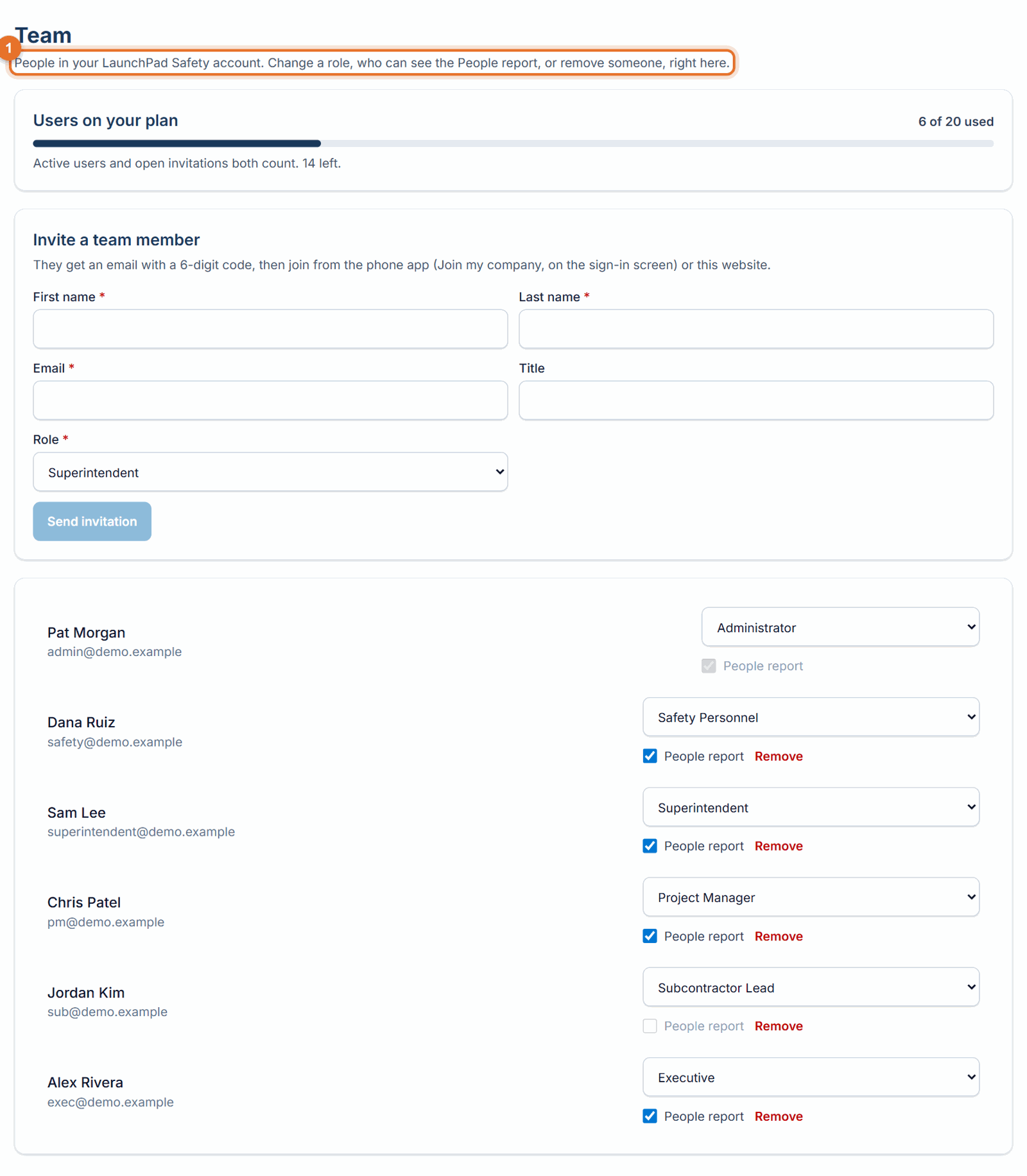
- Pick the new role. It saves straight away and you see "… is now …".
- Changing your own role asks you to confirm, because you stop being an Administrator.
People report access
The People report rates individuals, so it is turned on per person: - Always on for Administrators, never for Subcontractor Leads. - On by default for Safety Personnel, Project Administrators and Executives; the Administrator can turn it off. - Off by default for Superintendents, Project Managers and Project Coordinators; the Administrator can turn it on. - When a person's role changes, their People report access goes back to the new role's default.
If something goes wrong
- "The company needs at least one Administrator. Make someone else Administrator first.": you tried to change the only Administrator. Make another person Administrator, then change yours.
- "Only the Administrator can change roles and report access": ask your Administrator.
- A menu or button is missing: your role doesn't include it. Ask your Administrator.
Good to know
- Everyone except Administrators and Safety Personnel sees only the Procore projects they are on (Settings → Project access, on by default; the Administrator can turn it off). See Your Procore project team.
- Roles are per company. If you belong to two companies you can have a different role in each.